Showing posts with label Access Services. Show all posts

Tuesday, August 21, 2012

Four Ways to Create Business Apps with Access 2013

Andrew Stegmeier posted 4 Ways to Create Business Apps with Access 2013 on 8/20/2012:

There are many ways to build useful apps to run your business with Access 2013. You can download an app via the Office Store, build an app using a Web App Template, or create a Custom Web App. You also have the ability to make a desktop database, just like you always have in Access. Each method offers a fast and easy way to get started. Several members of the Access team explain more in the video below:

1 - Use the Office Store

Getting an app from the Office Store is a quick way to start using a database that's been professionally designed for a specific purpose. To use the store, you'll need to sign up for the Office 365 preview. (Be sure to choose one of the plans for business: Small Business Premium or Enterprise). After you've logged into your account, click the elipsis (...) in the upper-right-hand corner of the screen, then click "Office Store." You can easily search for apps related to your specific business. You'll find a wide array of SharePoint apps available—the ones that include the Access 2013 logo are Access 2013 web apps. After you find the app you want, you can click the Add button to install it directly to your SharePoint site and start using it right away.

Pick an app from the Office Store.

If you want, you can customize the app with Access 2013. For example, you could easily add a field to a table to track some information that's specific to your business. You could even add new tables and new relationships to track additional types of things. When you install an Access app from the Office store, you can get up and running fast, but there's still plenty of room to grow.

Customize your app in Access.

2 - Use Web App Templates

You can also make web apps directly from Access 2013. The easiest way to do this is by clicking on one of the web app template tiles that you see right after opening Access. You can search for additional templates if you don't see what you're looking for. These templates are fully-functional web databases, but instead of immediately seeing them in action, you're taken straight to the customization step. In our case, you can select "Task management" (outlined in blue).

Create a new web app from a template.

Once you've selected your template, give it a name and pick a location. If you're logged into your Office 365 preview account (see above), you will see two available locations by default. The first is for personal apps that you don't want to share with others. The second is for your company's default SharePoint team site. This is a great place to put an app that you want other people in your organization to be able to use.

Select a location for your app.

When you click Create, Access makes an app in the location you selected. The template you selected will include tables, relationships, and views that make it useful from the start. You can start adding data immediately by clicking Launch App in the ribbon. Or, you can customize the app in Access to your heart's content.

Launch your app in the browser.

3 - Build a Custom Web App

You can also build an app by starting from scratch. You can create custom tables and fields for your precise needs or search and add tables from our library of Table Templates. To build a custom web app, open Access 2013 and click on "Custom web app" (highlighted in blue). Just like with Web App Templates, you'll need to give your app a name and a location.

Create a custom web app.

You'll be initially given a blank database with no tables or schema. The easiest way to start building your app from here is to use table templates. To search for a table template related to what you'd like to do, simply type something in the search box and hit enter. You'll see a list of search results from the library. For example, if you type "Orders," then click on the Orders table template from the results, you'll find that a bunch of useful stuff related to tracking Orders has been added to your blank database.

Add tables using table templates.

Each template includes all the tables, fields and views you'll need to create a working app. Some templates come along with other, related tables. For example, the Orders template also gives you a place to track related Customers, Employees, Products, Suppliers, and Categories.

Access includes a large searchable library of these templates. Whether you want to manage products, employees, customers, projects, tasks, or ideas, it's likely you'll find a template that's tailored to your needs.

4 - Build a Desktop Database

If you don't have Office 365 or SharePoint, you won't be able to create web apps (options 1-3 above). You can, however, create desktop databases that run on your machine. If you've used previous versions of Access, these are the databases you're already familiar with, and you'll find it easy to work with files you've created in the past. Desktop databases have all the powerful features, such as VBA, that has made Access such a popular way to run a business.

To create a new desktop database, open up Access and click on any tile that uses the word "Desktop" such as the "Blank desktop database" or "Desktop asset tracking" (highlighted in blue). Just like with web databases, you can start from scratch or choose from a large library of templates. Once you've selected the template you want, give it a name and click create to start editing.

When Access is finished downloading your template, you'll be presented with the familiar, rich database building experience you've come to expect from Access, complete with reporting, advanced forms, and VBA.

A traditional desktop database.

Conclusion

No matter which method you choose—the Office store, Web App Templates, custom Web Apps, or Desktop Databases—Access 2013 will help you get started quickly. Try it out today by signing up for the Office 365 Preview. If you'd like to take advantage of Access 2013 Web Apps, be sure to choose one of the plans for business: Small Business Premium or Enterprise.


Wednesday, February 8, 2012

Securing MS Linked Tables Connection Strings During Migration

Han posted Securing MS Linked Tables Connection Strings During Migration to the SQL Server Migration Assistant Team Blog on 2/8/2012:

Microsoft Access stores all the connection strings for the respective linked tables in a system table called MSysObjects. As seen below, the connection strings contain clear-text used id and password. With the release for SSMA for Access 5.2, when creating link tables during migration, users will now have the option to not store the user id and password for the linked tables.

A new setting for linked tables can be found under the Project Settings menu. By default, the Store user credentials setting is set to false, thus user id and password will not be persisted in the connection string of a linked table. Switching the setting to true would provide the option to store the user id and password in the connection strings during the creation of linked tables.

It is important to note that after securing the connection string, MS Access users will have to enter the required user id and password whenever the linked tables are referenced in the MS Access Database application. Below shows the prompt presented by MS Access.

Sunday, December 18, 2011

New Competition for Access Web Databases: InfoPath 2010 Forms and SharePoint 2010 Online

Si Dunn (@grumblecore) posted a comprehensive review of Using Microsoft InfoPath 2010 with Microsoft SharePoint 2010: Step by Step on 12/14/2011:

Using Microsoft InfoPath 2010 with Microsoft SharePoint 2010: Step by Step
By Darvish Shadravan and Laura Rogers
(Microsoft Press, paperback, list price $34.99; Kindle edition, list price $31.99)

imageA 21st century Shakespeare might write: “All the world’s a form, and we are just filling it in.”

One of this book’s authors contends (not completely in jest) that “forms run the world. Imagine modern life without forms, both paper and digital–it’s not possible! Everything that is known and recorded about you, from your birth city to your magazine subscriptions, to your preference of aisle or window seats–yes, all of this information was entered in a form at some point in time.”

imageMicrosoft InfoPath 2010 is used to design and build electronic forms, as well as gather data, without writing code. Meanwhile, SharePoint Server 2010 “offers a robust architecture for managing access to data connections and external systems.” SharePoint is Microsoft’s suite of software tools aimed at making it “easier for people work together,” whether in the same office or scattered around the planet.

imageThis well-written and nicely illustrated book shows how to bring the two products together in powerful ways that (1) enable InfoPath forms to be created and formatted and (2) integrate data from SharePoint and other company systems. InfoPath forms also can be hosted on SharePoint.

The book is aimed at “any information worker that needs to build and use electronic forms that will be stored in SharePoint.” Its goal is to “teach you the basics of building and using InfoPath 2010 forms in a SharePoint 2010 environment.”

The writers assume you are at least a “savvy Office and Windows user.” It is helpful, but not mandatory, to also have at least some basic familiarity with SharePoint Server 2010. “However, even if you’re not a SharePoint guru, most topics in this book should be within your grasp,” they point out.

If you do not have a SharePoint environment in your company, “InfoPath 2010 supports the creation of forms in Microsoft Office 365,” the two authors note. Office 365 is Microsoft’s cloud product that provides online access to a variety of programs for communicating and collaborating. [Emphasis added.]

InfoPath has been around for a few years and recently was given a significant update. But many businesses and computer users do not have it.

That’s not show-stopper when InfoPath and SharePoint work together, the authors point out. ”If you create your forms as browser-enabled form templates, users who don’t have InfoPath installed on their computer can still work with the form in a browser. This lets you share business forms with a variety of users, including employees, customers, and vendors.”

The 446-page book has 14 chapters. The first four chapters show how to create and format forms using InfoPath. The remaining chapters focus on using InfoPath with SharePoint.

According to the two authors, “the mission of this book is to help you understand how to create business forms that provide a pleasant, reliable, and intuitive experience for your users and customers,” they write.

The process of creating, formatting and publishing forms is shown and described in clear, succinct how-to steps. Practice files can be downloaded from a Microsoft site, and the exercise topics range from the basics of form design to building an approval process and working with SharePoint views and dashboards, to (1) “control what fields are displayed at any given time” and (2) “generate reports from any information in SharePoint lists and libraries.”

The authors add: “SharePoint libraries, specifically form libraries, are well suited for storing and managing InfoPath forms.”

InfoPath’s native language is XML, “perhaps the single most powerful method of storing and sharing structured data to come along since the advent of digital computing.” Creating electronic forms has long been a code-intensive process.

InfoPath hides most of the XML behind an easy-to-use interface. And XSLT (Extensible Style Sheet Language) style sheets also “‘sit in front of’ the underlying XML and transform it into the rich and easy-to-use forms that InfoPath can create.”

The book’s illustrations, short paragraphs, step-by-step lists and example files can all help readers get up to speed quickly, whether Microsoft InfoPath 2010 is used with Microsoft SharePoint on a company network or via the cloud, by way of Office 365.

Si Dunn‘s latest book is a novel, Erwin’s Law. His other published works include Jump, a novella, and a book of poetry and several short stories, all available on Kindle. He previously worked in the telecommunications industry as a software and hardware tester and technical writer.

My Introducing Microsoft Office InfoPath 2003 book for Microsoft Press is still generating a few royalty checks.


Tuesday, November 15, 2011

Steven Thomas Reported Full-featured Access Services Solution at http://www.accesshosting.com on 11/14/2011

imageOur friends at AccessHosting.com are offering free trials of two Access "cloud" solutions. Curious? Here's the deal, from the source.

Offer text provided by AccessHosting.com:

Reporting services for Access Web Databases in SharePoint 2010 now available - Office 365 users looking web based reporting functionality can republish their databases to accesshosting.com and take advantage of a new introductory price for hosted Access 2010 web databases published to SharePoint 2010.

Remote Desktop Services for Access Applications - Looking to move your existing Access 2003, 2007 and 2010 applications into the cloud quickly and easily? Our Remote Desktop solution provides a simple, secure way to connect multiple external and internal users to your Access databases. You can also use this service to deliver legacy Access applications on the iPad and Android powered devices.

Both of these solutions are available as a no obligation 30-day trial for qualified customers. Visit www.accesshosting.com for complete details.

Read Steve’s original post here.

I’ve used AccessHosting’s services for several cloud-based projects. See my following posts:

Sunday, August 7, 2011

Visual Studio LightSwitch as a Microsoft Access Upgrade Path

Jeffrey Palermo (@jeffreypalermo) described Visual Studio LightSwitch, an Upgrade Path for Microsoft Access in a 7/30/2011 post to the Headspring blog:

imageThere are lots of business systems written in Microsoft Access. One of the most successful companies I know is Gladstone, Inc, makers of ShoWorks software. This software runs most of the county fairs in the U.S. From entries, to checks, to vendors, this piece of software does it all to help manage and run a fair and keep track of all the data. And it is written in Access.

imageStarted on Access 97, I have watched this software grow through the various Access upgrades, and it tests the limits of the platform. It’s author, Mike Hnatt, is one of the premiere Access gurus, and Microsoft has previous invited him up to the Redmond campus to be a part of internal Software Design Reviews, or SDR’s. Mike knows the limits of access, but even with the vast array of other development options out there, nothing comes close to parity with the capabilities he relies on – until today.

image

image222422222222This is my first LightSwitch application. I just installed the software, ran it, defined a table structure and a few screens. It’s really simple, and I see that i runs a desktop version of Silverlight. It feels like Access (I have done some of that programming earlier in my career) because you just define the tables and queries, and then ask for screens that work off the data. You can customize the screens to some degree, and you can write code behind the screens, just like you can write VBA behind Access screens. This is my first time looking at Lightswitch in a serious way since it was just released. I will be looking at it more because it belongs in our toolbelt at Headspring. There are plenty of clients who have Access and FoxPro systems. These systems have tremendously useful built-in functionality that is prohibitively expensive to duplicate in a custom way with raw WPF and C#, but Lightswitch provides a possible upgrade path that won’t break the bank.

In case you are wondering what it looks like to develop this, here it is.

image

Notice that there is a Solution Explorer, and you are in Visual Studio with a new project type. I was really pleased that I could write code easily.

image

I tried some ReSharper shortcuts, but they didn’t work. I guess we’ll have to wait for ReSharper to enable this project type. Here is my custom button that shows the message box.

image

I think LightSwitch as a lot of promise for legacy system rewrites, upgrades, and conversions. Because it’s 100% .Net, you can mix and match with web services, desktop, SQL Server, etc.

Jeffrey is COO of Headspring.

It’s nice to see a well-known and respected .NET developer give credit to Microsoft Access where it’s due.


Friday, August 5, 2011

Office 365 Video: Updating an Access database using SharePoint Online

Chris from the Microsoft SharePoint Content Team posted Office 365 Video: Updating an Access database using SharePoint Online to the SharePoint for End Users blog on 8/2/2011:

Are you a Microsoft Access 2010 user? With Microsoft Office 365, you can use your Windows 7 smartphone to read and update a team database remotely.

Important: The services and features that this video shows depend on several factors, such as the Microsoft Office 365 plan purchase agreement, licenses that might be assigned to each user, and specific user permissions. If your experience is different from the experience shown in the video, see your site administrator.

Prerequisites: This scenario requires Microsoft Office 365 for enterprises with Enterprise Services enabled; Microsoft Access on a single client computer.

To learn more about Access and SharePoint, check out the topics below:

As always, let us know what you think!

For my detailed Webcasts about upsizing Access *.accdb databases to Web Databases that run with the version of SharePoint Online that comes with the US$6.00/month version of Microsoft Office 365 online, read Learn How To Create Access Web Databases with Office 365’s SharePoint Online from my Latest Webcast of 5/27/2011.

Monday, August 1, 2011

A SharePoint 2010 Primer for Access 2010 Developers by Ben Clothier

Ben Clothier answered SharePoint and Access: How do they fit together? in a 6/15/2011 post to the AccessExperts.net blog:

imageHello Access with SQL Server blog readers! This is my first post since joining [IT Impact] and I look forward to many more! Both Juan and I will be blogging here on Access, SQL Server and SharePoint and we love reading your comments, so please leave us feedback below.

My specialty is Access and SharePoint, so what better way to get started than with a Series on both?

Access and SharePoint

imageIf you’ve been working with Access for a while, it’s hard to miss the push Microsoft has been putting behind SharePoint integration with Access. The integration started as early as Access 2003, continued through 2007 and has blossomed with 2010. Without question the number one feature in the latest release is publishing your database to the web with SharePoint. In this first post I’m going to discuss what is SharePoint and why was it used to publish Access web databases, replace the Jet Replication and other integration features.

So what is SharePoint?

If you were to go over to Microsoft SharePoint page, you may see a long list of features and success stories described in nebulous terms. Indeed, there is no one simple definition to tack SharePoint to. Instead of discussing its capabilities, I believe we’re better off discussing the intention behind its capabilities, and I’m going to use Access as an analogy.

SharePoint is to Web Apps as Access is to Visual Studio

Why do we use Access instead of Visual Studio? Isn’t Visual Studio more powerful and lets us do all those cool things in code? Or better yet, why not just hire a professional to set up everything for us? The fact is, Access is accessible (excuse the pun) to *non*-programmers; people who need to track their data as part of their job and this is the crucial difference. To use Access, you’re not required to be a professional to get started, and because you can do it yourself. You don’t have to go and talk with your IT department who may be overworked with other, more important projects. Precisely because of this ability to create something on a worker’s desktop, Access is has become the most popular database in the world. Some of you may be thinking, “but there are complex Access applications that requires specialized consultants out there!” – Well, yes, but that usually comes later in the Access databases’ life and not all Access databases out there end the same way and to me that’s the beauty of Access – it enables companies to develop a line-of-business applications at far less risk, whether monetary or time & effort than if we opted to use Visual Studio.

SharePoint solves a different set of problems exactly the same way as Access does: it enables *non*-web-designers to build web pages quickly and without any specialized knowledge because it’s merely a part of their workflow and not their livelihood. Likewise, it enables workers to manage files without having to think about the organization of the files, backing up the files and how they would find the files again. SharePoint helps the company saves money by reducing the overall IT administration in contrast to traditional file sharing/networked hard drives, management of documents and so forth. Some people has suggested that SharePoint be thought of as a platform providing easy-to-use building blocks, and suddenly the analogy from Access is much more accurate; we get to build web applications or develop a certain document management strategy at far less risk and expenses than if we built one from scratch.

In fact, when you examine the difference between Jet Replication and the Offline mode with SharePoint, it’s impressive in how simple it is. All you have to do is just use SharePoint as your data source and everything else about working offline and synchronizing is automatic. No manual configuration. No coding or additional installation. This truly demonstrate the raison d’être behind Access and SharePoint; solving IT problems for common people. And that’s just one of many integration points between Access and SharePoint.

SharePoint is not a relational database

Access and SharePoint are very similar when we look at how they can solve business problems. Given the similarity in the audience both programs addresses, it seems conceivable that they’d be peas in pod, right? Well, here’s the other thing. Many professional Access consultants are actutely aware that SharePoint is anything but a true relational database system and they’re right. Even though SharePoint is powered by SQL Server, it introduces additional abstractions in the form of “lists” which are not similar to a SQL table and has some ramifications on how we can use lists in Access. That’ll be addressed in a future post.

SharePoint 2010 + Access 2010 = Instant Web Database!

The latest version of Access will allow you to publish your work to SharePoint 2010 with just one URL and a click. Gone are the days were you needed to upload files, configure security, configure the web server and countless other details. Granted, not all of the functionality of Access made it into this version of SharePoint’s Access Services, but we expect improved functionality in the years to come.

Sounds great! So why isn’t SharePoint used in small businesses?

Price is another point where SharePoint and Access diverge, SharePoint’s cost are much higher, both in terms of licensing fees and man hours required to support and maintain it. Microsoft has made some headway in this area by offering Office365 which essentially promises to brings SharePoint functionality to small businesses. Of course, there’s also AccessHosting which specializes in hosting Access web databases and we provide consultation for developmental work on web database that get hosted. This inevitable reality of moving services off the desktop and into “cloud” will also be examined in a future post.

My second post [see below] will discuss SharePoint lists in more detail.

For more details about SharePoint and Access integration, see links to my Webcasts in my Three Microsoft Access 2010 Webcasts Scheduled by Que Publishing for March, April and May 2011 post of 5/3/2011.


Ben Clothier continued his Access and SharePoint series with a SharePoint Lists and Microsoft Access in depth post of 7/7/2011 (missed when posted):

imageIn a recent post, I discussed about how SharePoint and Access address similar audiences and provide easy solutions to different problems. Now we’ll examine the main object you’ll interact with SharePoint within Access: Lists. If you’re using the new web database with Access 2010, the “web tables” are in fact SharePoint Lists by a different name. Therefore, if you know something about them, you’ll also know something about web tables. There are some key differences between the two we will discuss later in the article.

imageAs linked tables go, SharePoint Lists are definitely a horse of different color. I’ve said it before and I’ll say it again: SharePoint is anything but a true relational database. The lists totally reflect this. Therefore many techniques you may have picked up in optimizing your operations with linked tables may be inapplicable and we need to consider new ones.

Is it *gasp* de-normalized?

In a way, lists are denormalized. If you cared to peek inside the SQL Server database that SharePoint uses to store Lists, you would realize that all list items are stored in one giant sized table with columns names int1, int2, int3 and so forth. There’s another large table that describe the definition of the list and maps its columns to those wildcard columns. In a way, you could say SharePoint Lists are based on the Entity-Attribute-Value data model. After all, there is a reason why they’re called “Lists” and not “Tables”. Historically, they were just that – a simple list of values. In fact, up to SharePoint 2010, referential integrity wasn’t supported, a sore point that could very well have been the #1 blocking reason for adoption of SharePoint as a data source among Access developers. In prior versions you could relate a list to other lists in a loose way. The lists had no formal structure, since on average, they were created by non developers who uses SharePoint as a means to get the job done rather than developing comprehensive and robust solution for others. We’ll examine the implications this has for us when we use SharePoint Lists.

SharePoint Lists operates on ISAM model

Whenever we link to a ODBC data source, Access only needs to submit a SQL statement which is then executed on the server and sent back for Access’ consumption. However, when we query a SharePoint List for the first time, Access has to fetch all records and download them to a local cache in order to process the query which is then executed locally. In 2007, the local cache was stored in a XML format but with 2010, Access will use actual local Access tables (hidden from the UI) to work as a cache.

What SharePoint lists offers that linked tables don’t

This enables at least four things that we do not normally enjoy with ODBC linked tables:

1) Offline data access

A persistent connection to the backend is not required, the tables have more tolerance to disconnections & network interruptions than with a regular ODBC linked table.

2) Built-in replication

Even better, when users have a connection restored, they can sync their changes without any special configuration as was the case with old Jet Replication.

3) Design changes

With most linked tables, you probably had to shuttle between Access and the server’s management software (e.g. SQL Server Management Studio for SQL Server tables/views) if you wanted to make design changes. Even a simple thing such as adding a new field usually meant you had to go over there and issue the ALTER TABLE command, come back to Access and refresh the links to get that new field. With SharePoint Lists, whether as a web table or linked table, you get to make design changes without leaving Access.

4) Automatic Auditing & Versioning

SharePoint is designed from grounds up to provide auditing and data recovery. Whenever you delete a list item from the list, it’s not actually deleted but rather moved into a recycle bin which gives the user an opportunity to undo the accidental deletion. Furthermore, there’s second-tier Recycle Bin accessible to the administrators so data recovery is always possible. SharePoint also supports versioning of data out of the box and has tools to track all changes made to the data saved within the list. All of this great functionality is free; no configuration is required for recycle bin and you simply need to flick the switch for versioning.

Server-side filtering

There are no server-side operations other than fetching all the records and keeping the cache synchronized, which means your queries are always executed locally using Access database engine, unlike ODBC linked tables. If you want to have true server-side filtering consider using SharePoint Views which are analogous but not identical to SQL View. Unfortunately, there is no simple UI process to link to a SharePoint view; it has to be done in code:

DoCmd.TransferSharePointList _
acLinkSharePointList, _
"http:\\server\site", _
"MyList", _
"{7042e1d4-c929-4a7e-8d34-b5d93b9495fd}", _
"tblMyList", _
True

You may be wondering how we came up with GUID “{7042e1d4-c929-4a7e-8d34-b5d93b9495fd}”. SharePoint assigns a GUID to each object, you can’t use the View’s name as you could with a List’s name to select the object. To find out the GUID for your View, you’d have to open your SharePoint site in your web browser, navigate to the List and on the ribbon select Modify View. The GUID will then appear in the URL. Depending on which web browser you are using, it may be encoded so you’ll have to replace “%2D” with “-”, “%7B” with “{” and %7D” with “}”. Two things to note –

1) You can link to the same list multiple times, using different views so you are not necessarily restricted to choosing one view out of all views available for a given list.

2) Views only work as a linked SharePoint list – views can be created with web tables but are ignored in the web database, unless you create a separate linked table object which would not be accessible in the web browser, only in Access (this is what they call “hybrid application”, which we’ll talk about later).

You can use the View to provide additional filtering. This can be helpful particularly in cases where you may have a large amount of items but only need a handful of active, current, pending or open records. However, there’s one major difference between a SharePoint View and a SQL View. As you know, a SQL View has its own set of permissions and you can use Views to manage security. That’s not the case with SharePoint Views. You can prevent people from editing the view’s definition but you can’t prevent people from linking to the underlying SharePoint List directly.

How many columns can I really have?

As those familiar with SQL Server know, we can have a large table with many fields which while quite rare for normalized relational design may be desirable for a OLAP data model. SharePoint also allows a large number of fields. I already mentioned earlier that the List basically has a number of columns of certain data type. How does it handle the scenario when we need more than a given number of a certain data types? The answer is that SharePoint LIst uses Row-Wrapping; a single SharePoint List Item may be actually stored on more than one SQL Server row. By default, SharePoint allows you to row-wrap up to six SQL rows. Let’s take the example of Date and Time data types. The article linked above says we can have 48 Date and Time data type in a single List. If we divide 48 with 6, that actually means we only have 8 Date and Time data types that will fit a single SQL row. So, if we create a SharePoint List that had 20 columns and it happened that there was 9 Date and Time, then we’d have one SQL row populated with data from 19 fields and second SQL row populated with only one excess Date and Time data type. If your list then has 100 list items, we’d need to read 200 SQL rows to gather data from 20 columns including the 9th Date and Time data type. If performance is a important consideration in your design and you expect to store large amount of data, you should be mindful of how many columns and what data types you plan to have so you can minimize row-wrapping.

Conclusions

We’ve only scratched the surface when it comes to SharePoint but I’m confident you’ll find the information much more relevant to Access development and we’ll explore more about web database in my next post.


Ben is a Senior Access Developer at IT Impact, Inc.

For more details about SharePoint and Access integration, see links to my Webcasts in my Three Microsoft Access 2010 Webcasts Scheduled by Que Publishing for March, April and May 2011 post of 5/3/2011.


Thanks to Steven Thomas for the heads-up in his Access and SharePoint: a look at integration points from 2003 to 2010 post of 7/31/2011.


Sunday, July 17, 2011

Migrate Access 2000 or Later Databases to Public or Private Rollbase Clouds

imageNow that Office 365 has been released to the Web (RTW) for commercial use, there is considerable interest in taking advantage of SharePoint Online’s Access Services to create Web-based data management applications (Access Web Databases) at a monthly cost of US$6 per user. An advantage of this approach is that Access Services supports migration of tables, queries, forms and macros to SharePoint lists, Web pages and workflows. Alternatively, you can move just the Access tables to SharePoint Online and link them to on-premises Access front-ends. Optional local data caching improves data access performance and enables offline data entry. You can learn more about migrating Access 2010 applications to SharePoint Online in my May 2011 Webcast.

imageNote: The current version of Office 365’s Access Services doesn’t support reports. If you need printed reports, Access Hosting offers hosted SharePoint 2010 for up to 10 users at a flat rate of US$99 per month. Access Hosting offers many advantages over SharePoint online, as described here (scroll down.) My Upsizing the Northwind Web Database to an Updated SharePoint 2010 Server Hosted by AccessHosting.com post contains links to my March 2011 Webcast about the topic.

imageRollbase is a cloud application platform, which includes a wizard for importing Access 2000 or later *.mdb and Excel *.xls and *.csv files into Rollbase Objects and Fields to create Rollbase Applications for the Web. Rollbase’s primary claims to fame are its reported capability to import Salesforce and Force.com applications and availability in public and private cloud versions. There’s no indication on the Rollbase site of support for importing Access objects other than tables. Hosted applications are US$15 per month per user.


P.S.: Bruce Kyle reported 200 Sessions Announced for SharePoint Conference 2011 in a 7/17/2011 post to MSDN’s US ISV Evangelism blog:

imageSharePoint Conference 2011 is your only opportunity this year to see over 200 sessions focused on SharePoint 2010 and related technologies both in the cloud and on-premises. All current session content including abstracts and speakers have been posted to www.mssharepointconference.com!

The conference will be held in Anaheim, CA on October 3 – 6.

imageThis year’s conference will have a breadth of both technical and non-technical sessions and will have suitable topics for everyone regardless if you are new to SharePoint 2010 or working on continuing your SharePoint education.

SPC11 will provide you with the training, insight, and networking you need to develop, deploy, govern and get the most from SharePoint. You’ll also hear from Microsoft Engineers, Product Managers, MCMs and MVPs who will discuss topics such as cloud services, best practices and real world project insights.

imageDon’t miss your chance to attend and learn from these sessions by registering now! Conference registration is only $1,199 and seats are selling fast with only 2.5 months until the event!

Pre & Post Conference Training Opportunities

SharePoint Conference announces five ancillary conference training opportunities with limited space! Act fast before space sells out!

To view more information on each session below click on the training title to learn more about the session including abstracts, agendas, speakers, costs and maximum attendance. Register now to reserve your seat!

Sunday, October 2
Thursday, October 6 (2pm-6pm)
Friday, October 7

Wednesday, June 29, 2011

New Office 365 Developer Training Course Includes Updated Access Services Unit

Chris Mayo posted Office 365 is Now Available! to his SharePoint Development in the Cloud blog on 6/28/2011:

imageOffice 365 was released to General Availability today with Steve Ballmer hosting the worldwide launch event in New York City. With this release, Office 365 (including SharePoint Online, Exchange Online, Lync Online and Office 2010 Professional Plus) can now be purchased directly from the Office 365 web site.

imageTo coincide with the launch, I’m happy to announce an updated Office 365 Developer Training Course to help you get started building solutions for the cloud with Office 365. The course includes 8 sessions, over 12 hours of video and 19 labs as both an offline training kit as well as an online training course on MSDN.

The Office 365 Developer Training Course includes the following training units:

  • Developing in the Cloud with Office 365 (Updated)
    • Office 365 provides a communication and collaboration service in the cloud that you can leverage to build custom solutions for SharePoint Online, Exchange Online and Lync Online. In this session, you’ll learn about this new cloud service and the breadth of solutions that can be developed using the same skills, tools and SDKs you use today when building on-premises solutions.
  • Developing for SharePoint Online with Sandbox Solutions (Updated)
    • Sandboxed Solutions are the development paradigm for SharePoint Online. In this session, you’ll learn about sandboxed solutions including how to develop, debug and deploy solutions. You’ll also learn the breadth of solutions that can be developed in the sandbox and strategies for developing common scenarios that are not enabled in the sandbox.
  • Building Workflow Solutions for SharePoint Online (Updated)
    • Building Workflow solutions for SharePoint Online allows you to automate
      collaboration-centric business processes and surface them to your users via SharePoint Online. In this session, you’ll learn the differences between
      declarative and code-based workflows, design a workflow using Visio 2010,
      implement that workflow in SharePoint Designer 2010 and customize the workflow using Visual Studio 2010 and custom actions.
  • Developing SharePoint Online Solutions with the Client Object Model (Updated)
    • The SharePoint Client Object Model provides libraries for programmatically
      accessing SharePoint Online via Silverlight and JavaScript. In this session,
      we’ll go deep into the Client Object Model and show you how to develop solutions using both Silverlight and JavaScript.
  • SharePoint Online Branding (New)
    • Customizing an intranet site with your company's identity and branding can help create a more effective collaboration experience. In this video, you'll learn how SharePoint Online allows users, designers and developers to customize the look and feel of a site. This can range from simple changes like setting a site logo and Theme to completely changing the user experience with custom styles and Master Pages. In this session, you'll learn how to make these customizations to brand your SharePoint Online site.
  • Leveraging Excel and Access Services in SharePoint Online (Updated)
    • imageExcel and Access Services provide powerful features for building SharePoint Online solutions. In this session, you’ll get an inside look at both Excel and Access services and how each can be accessed programmatically when building SharePoint Online solutions. [Emphasis added.]
  • Developing Communication Solutions for Lync Online (Updated)
    • In this session, you learn how to integrate Lync features into your WPF and Silverlight clients much in the same way that Office and SharePoint do, including presence, contact lists and click-to-communicate features. You will also learn how to extend Lync communications to include data and features from your client applications much in the same way that Outlook 2010 does with the "IM" and "Call" features within an email.
  • Developing Messaging Solutions for Exchange Online (Updated)
    • In this session, you'll learn how to integrate Exchange Online mailbox data such as mail, calendar and task items as well as Exchange Online services such as the free-busy service into your applications using an easy to discover and easy to use managed API.

To use this training course as self-paced training, you’ll need to do the following:

  1. Set up a local SharePoint development environment (or download and configure the Information Worker VMs).
  2. Download and install the Office 365 Developer Training Kit onto your development machine.
  3. Sign up for an Office 365 trial to gain access to the service.
  4. Visit the Office 365 Training Course on MSDN to watch the videos and get started with the labs.

Monday, June 20, 2011

Reading Office 365 Beta’s SharePoint Online Lists with the Open Data Protocol (OData)

imageMy earlier Access Web Databases on AccessHosting.com: What is OData and Why Should I Care? post (updated 3/16/2011) described working with multi-tenant SharePoint 2010 Server instances provided by AccessHosters.com. Microsoft is about to release Office 365 as a commercial service (presently scheduled for 6/28/2011), so the details for using OData to manipulate SharePoint Online lists have become apropos.

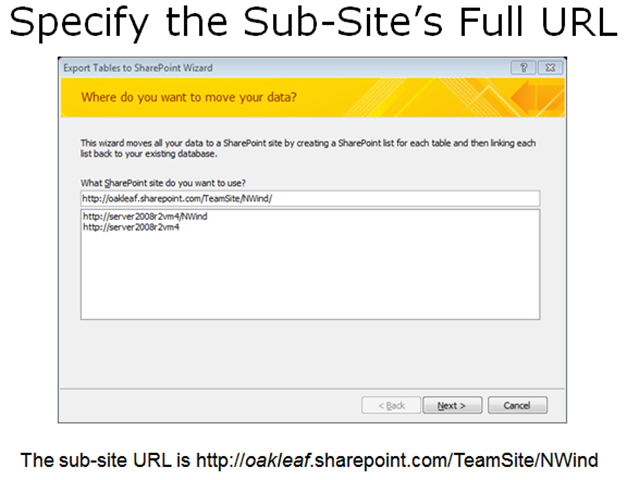
I delivered on 5/23/2011 a Moving Access Tables to SharePoint 2010 or SharePoint Online Lists Webcast for Que Publishing, which provides detailed instructions for creating Web databases by moving conventional Access *.accdb databases to SharePoint Online lists and, optionally, create Web pages that emulate Access forms and reports. Click here to open the Webcast’s slides, which begin by describing how to move Access tables to an onsite SharePoint 2010 server installation and how to overcome problems with relational features that SharePoint lists don’t support. Slides 30 through 34 describe how to move the tables from Northwind.mdb (the classic version) to a ServiceName.sharepoint.com/TeamSite/Nwind subsite, where ServiceName is the name you chose when you signed up for Office 365 (oakleaf for this example):
image

Opening an OData list of Collections

Log into your site’s default public web site at http://ServiceName.sharepoint.com/, click the Member Login navigation button, type your Microsoft Online username (UserName@ServiceName.onmicrosoft.com) and password if requested, and click OK to enter the default TeamSite in editing mode.

Click the SubsiteName, NWind for this example, and Lists links to display the lists’ names, descriptions, number of items and Last Modified date:

image

To display in OData a list of the SharePoint lists in a subsite, NWind for this example, type http://ServiceName.sharepoint.com/TeamSite/NWind/_vti_bin/listdata.svc in the address bar of IE9 or later:

image

Note: vti is an abbreviation for Vermeer Technologies, Inc., the creators of the FrontPage Web authoring application. Microsoft acquired Vermeer in January 1996 and incorporated FrontPage in the Microsoft Office suite from 1997 to 2003.

The EmployeesTitleOfCourtesy item is a lookup list with Dr., Miss, Mr., Mrs. and .Ms choices. The Attachment and two MasterPage… items are default lists found in all sites.

Display Items in a Collection

To display the list items in a collection, add /CollectionName/ (case-sensitive) to the URL for collections. If the resulting page in IE7+ appears similar to the following, you must turn off feed-reading view:

image

Turn Off Feed-Reading View, if Necessary

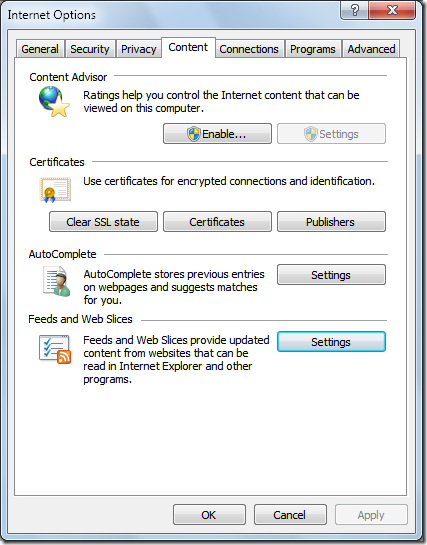
To turn off feed-reading view, open the Internet Options dialog, click the Content tab:
image

Click the Feeds and Web Slices section’s Settings button to open the Feed and Web Slice settings dialog and clear all check boxes:

image

Click OK three times to return to IE9+. Close and reopen IE to display the items in a formatted OData feed:

image

Verify Query Throttling

According to the All Site Content page, the OrderDetails table has 2,155 items. To determine if queries are throttled to return a maximum number of items, change the URL’s /CollectionName/ suffix from /EmployeesTitleOfCourtesy/ to /OrderDetails/. Press Ctrl+PgDn to navigate to the last item:

image

Office 365 beta throttles OData queries by delivering a maximum of 1,000 records per query, as indicated by the last item’s ID of 1000 and the <link rel="next" href="http://oakleaf.sharepoint.com/TeamSite/NWind/_vti_bin/listdata.svc/OrderDetails/?$skiptoken=1000" /> element immediately above the </feed> closing tag. Copy the URL with the skiptoken query option into the address bar to return the next 1,000 Order Details items, starting with ID 1001:

image

Paging to the end of the document confirms a $skiptoken=2000 value.

To return a single entry, append the Id value enclosed in parenthesis to the list name, as in http://oakleaf.sharepoint.com/TeamSite/NWind/_vti_bin/listdata.svc/OrderDetails(2001).

Note: SharePoint adds an autoincrementing Id primary key value to all lists generated from Access tables and saves the original primary key value in an __OldID column. This column is the source of the problem I reported in my SharePoint 2010 Lists’ OData Content Created by Access Services is Incompatible with ADO.NET Data Services post of 3/22/2011.

Remote Authentication in SharePoint Online Using Claims-Based Authentication

Third-party OData browsers, such as Fabrice Marguerie’s Sesame Data Browser, enable displaying, querying and, in some cases, updating content delivered by most OData providers. Sesame is a Sliverlight application, which runs from the desktop or in a browser. Sesame offers a built-in set of sample data sets and enables a variety of authentication methods, including Windows Azure, SQL Azure, Azure DataMarket and HTTP Basic.

Here’s a screen capture of browser-based Sesame with a connection specified to Fabrice’s Northwind sample database OData source:

 image

Clicking OK displays members of the tables collection in the left-hand frame. Clicking an entry displays up to its first 15 elements. Hovering over a record selection arrow opens a button to display items in a related table by means of a lookup column, such as orders for AROUT in the following example:

image

Clicking the related table button opens the first 15 or fewer related entries in a linked query window:

 image

The query string is Customers('AROUT')/Orders.

Problems Displaying SharePoint Online Lists in OData Format with the Sesame browser

Attempting to open the OData representation of a SharePoint Online list with Sesame’s Basic authentication (your Office 365 username and password), fails with a .NET Not Found exception. Here’s Fiddler 2.3.4.4 display of the raw HTTP request and response messages involved:

image

Following is a fiddler capture for a successful IE9 browser request for the OData representation of the SharePoint Online Products list:

image

Here’s Fiddler’s Headers view of the successful operation:

image

SharePoint Online doesn’t accept Basic authentication. Instead, it requires a pair of login cookies to enable remote claims-based authentication.

Robert Bogue’s Remote Authentication in SharePoint Online Using Claims-Based Authentication article for the MSDN Library’s “Claims and Security Articles for SharePoint 2011” topic explains how remote claims-based authentication works:

Introduction to Remote Authentication in SharePoint Online Using Claims-Based Authentication

The decision to rely on cloud-based services, such as Microsoft SharePoint Online, is not made lightly and is often hampered by the concern about access to the organization's data for internal needs. In this article, I will address this key concern by providing a framework and sample code for building client applications that can remotely authenticate users against SharePoint Online by using the SharePoint 2010 client-side object model.

Note: Although this article focuses on SharePoint Online, the techniques discussed can be applied to any environment where the remote SharePoint 2010 server uses claims-based authentication.

I will review the SharePoint 2010 authentication methods, provide details for some of the operation of SharePoint 2010 with claims-mode authentication, and describe an approach for developing a set of tools to enable remote authentication to the server for use with the client-side object model.

Brief Overview of SharePoint Authentication

In Office SharePoint Server 2007, there were two authentication types: Windows authentication, which relied upon authentication information being transmitted via HTTP headers, and forms-based authentication. Forms-based authentication used the Microsoft ASP.NET membership and roles engines for managing users and roles (or groups). This was a great improvement in authentication over the 2003 version of the SharePoint technologies, which relied exclusively on Windows authentication. However, it still made it difficult to accomplish many scenarios, such as federated sign-on and single sign-on.

To demonstrate the shortcomings of relying solely on Windows authentication, consider an environment that uses only Windows authentication. In this environment, users whose computers are not joined to the domain, or whose configurations are not set to automatically transmit credentials, are prompted for credentials for each web application they access, and in each program they access it from. So, for example, if there is a SharePoint-based intranet on intranet.contoso.com, and My Sites are located on my.contoso.com, users are prompted twice for credentials. If they open a Microsoft Word document from each site, they are prompted two more times, and two more times for Microsoft Excel. Obviously, this is not the best user experience.

However, if the same network uses forms-based authentication, after users log in to SharePoint, they are not prompted for authentication in other applications such as Word and Excel. But they are prompted for authentication on each of the two web applications.

Federated login systems, such as Windows Live ID, existed, but integrating them into Office SharePoint Server 2007 was difficult. Fundamentally, the forms-based mechanism was designed to authenticate against local users, that is, it was not designed to authenticate identity based on a federated system. SharePoint 2010 addressed this by adding direct support for claims-based authentication. This enables SharePoint 2010 to rely on a third party to authenticate the user, and to provide information about the roles that the user has. …

Robert continues with an “Evolution of Claims-Based Authentication” topic and …

SharePoint Claims Authentication Sequence

Now that you have learned about the advantages of claims-based authentication, we can examine what actually happens when you work with claims-based security in SharePoint. When using classic authentication, you expect that SharePoint will issue an HTTP status code of 401 at the client, indicating the types of HTTP authentication the server supports. However, in claims mode a more complex interaction occurs. The following is a detailed account of the sequence that SharePoint performs when it is configured for both Windows authentication and Windows Live ID through claims.

  1. The user selects a link on the secured site, and the client transmits the request.
  2. The server responds with an HTTP status code of 302, indicating a temporary redirect. The target page is /_layouts/authenticate.aspx, with a query string parameter of Source that contains the server relative source URL that the user initially requested.
  3. The client requests /_layouts/authenticate.aspx.
  4. The server responds with a 302 temporary redirect to /_login/default.aspx with a query string parameter of ReturnUrl that includes the authentication page and its query string.
  5. The client requests the /_login/default.aspx page.
  6. The server responds with a page that prompts the user to select the authentication method. This happens because the server is configured to accept claims from multiple security token services (STSs), including the built-in SharePoint STS and the Windows Live ID STS.
  7. The user selects the appropriate login provider from the drop-down list, and the client posts the response on /_login/default.aspx.
  8. The server responds with a 302 temporary redirect to /_trust/default.aspx with a query string parameter of trust with the trust provider that the user selected, a ReturnUrl parameter that includes the authenticate.aspx page, and an additional query string parameter with the source again. Source is still a part of the ReturnUrl parameter.
  9. The client follows the redirect and gets /_trust/default.aspx.
  10. The server responds with a 302 temporary redirect to the URL of the identity provider. In the case of Windows Live ID, the URL is https://login.live.com/login.srf with a series of parameters that identify the site to Windows Live ID and a wctx parameter that matches the ReturnUrl query string provided previously.
  11. The client and server iterate an exchange of information, based on the operation of Windows Live ID and then the user, eventually ending in a post to /_trust/default.aspx, which was configured in Windows Live ID. This post includes a Security Assertion Markup Language (SAML) token that includes the user's identity and Windows Live ID signature that specifies that the ID is correct.
  12. The server responds with a redirect to /_layouts/authenticate.aspx, as was provided initially as the redirect URL in the ReturnUrl query string parameter. This value comes back from the claims provider as wctx in the form of a form post variable. During the redirect, the /_trust/default.aspx page writes two or more encrypted and encoded authentication cookies that are retransmitted on every request to the website. These cookies consist of one or more FedAuth cookies, and an rtFA cookie. The FedAuth cookies enable federated authorization, and the rtFA cookie enables signing out the user from all SharePoint sites, even if the sign-out process starts from a non-SharePoint site.
  13. The client requests /_layouts/authenticate.aspx with a query string parameter of the source URL.
  14. The server responds with a 302 temporary redirect to the source URL.

Note: If there is only one authentication mechanism for the zone on which the user is accessing the web application, the user is not prompted for which authentication to use (see step 6). Instead, /_login/default.aspx immediately redirects the user to the appropriate authentication provider—in this case, Windows Live ID.

SharePoint Online Authentication Cookies

An important aspect of this process, and the one that makes it difficult but not impossible to use remote authentication for SharePoint Online in client-side applications, is that the FedAuth cookies are written with an HTTPOnly flag. This flag is designed to prevent cross-site scripting (XSS) attacks. In a cross-site scripting attack, a malicious user injects script onto a page that transmits or uses cookies that are available on the current page for some nefarious purpose. The HTTPOnly flag on the cookie prevents Internet Explorer from allowing access to the cookie from client-side script. The Microsoft .NET Framework observes the HTTPOnly flag also, making it impossible to directly retrieve the cookie from the .NET Framework object model.

Note: For SharePoint Online, the FedAuth cookies are written with an HTTPOnly flag. However, for on-premises SharePoint 2010 installations, an administrator could modify the web.config file to render normal cookies without this flag. …

Robert concludes the article with “Using the Client Object Models for Remote Authentication in SharePoint Online” and “Reviewing the SharePoint Online Remote Authentication Sample Code Project.”

Fabrice will need to add a SharePoint authentication option with code similar to that described in the article to enable interacting with OData content from SharePoint Online.

OData References

Following is a table of useful references that provide the details of OData query and data update syntax:

ID

Author

Description

Date

1

Microsoft (MSDN)

[MS-ODATA]: Open Data Protocol (OData) Specification

5/2011

2

Microsoft (MSDN)

Windows Azure Storage Services REST API Reference

2011

3

Robert Bogue for MSDN

Remote Authentication in SharePoint Online Using Claims-Based Authentication

4/2011

4

OData.org

Open Data Protocol Organization Web Site and Blog

6/2011

5

Chris Sells

Open Data Protocol by Example

3/2010

6

Chris Sells

Hello, Data

6/2010

7

SAP

How To... Create Services Using the OData Channel

4/2011

8

Roger Jennings

Access Web Databases on AccessHosting.com: What is OData and Why Should I Care?

3/16/2011

9

Roger Jennings

SharePoint 2010 Lists’ OData Content Created by Access Services is Incompatible with ADO.NET Data Services

3/22/2011

10

Roger Jennings

Reading Office 365 Beta’s SharePoint Online Lists with the Open Data Protocol (OData)

6/20/2011

11

Access Team

Get to Access Services tables with OData

7/20/2010

12

Eric White

Getting Started using the OData REST API to Query a SharePoint List

12/9/2010

13

Eric White

Using the OData Rest API for CRUD Operations on a SharePoint List

12/17/2010

14

Eric White

Consuming External OData Feeds with SharePoint BCS

5/23/2011

15

Jonathan Carter

Open Data for the EnterpriseOpen Data for the Enterprise (TechEd 2010 session)

6/9/2010

16

Alex James

Best Practices: Creating OData Services Using Windows Communication Foundation (WCF) Data Services (TechEd 2010 session)

6/9/2010