Showing posts with label Access Web Apps. Show all posts

Thursday, August 30, 2012

Link Access 2013 Web Apps to SharePoint Lists

Andrew Stegmeier posted Connect your Access 2013 Web Apps to SharePoint Lists by Lois Wang on 8/30/2012:

This post was written by Lois Wang, a Program Manager on the Access team.

imageAccess 2013 web apps are great places to centralize your data. Whether you're tracking people, events, products or something else, storing data in an Access app allows you to easily collaborate with others while keeping things organized.

Sometimes, though, the stuff you care about is already stored somewhere else. Although you could import the data into Access, those external sources may be maintained by other people or processes. In these cases, you want to make sure that as these sources are updated, you're always seeing the latest version in Access. Wouldn't it be great if you could simply link to these data?

Access 2013 makes this easy. The web apps you create with Access 2013 can connect to and display real-time data from SharePoint lists. That way, you can easily supplement or combine external data sources with the things that your app uniquely tracks.

imageImagine a scenario where a small business owner named Ryan is trying to manage a party planning company. He and his five employees use Office 365 for sharing information. His accountant manages all the suppliers of his business in a SharePoint list. Ryan has built an Access 2013 web app to manage all the parties that he is in charge of planning. He wants to pull supplier information into his app, but he doesn't want to have to worry about manually keeping his app in sync with the accountants list. How can he do that?

The PartySuppliers SharePoint list.

He opens up his Access 2013 web app in the Access designer and clicks the Create Table button in the ribbon. Then, under the heading "Create a table from an existing data source," he chooses "SharePoint List."

Add a new table from an existing data source.

The next step is to provide the URL of the SharePoint site where the PartySuppliers list lives. Since he wants to link to rather than import his data, Ryan selects "Link to the data source by creating a linked table."

The External Data wizard.

Access will go fetch the names of the lists on that site, and Ryan selects the one he wants—the PartySuppliers list. In order for Ryan set up this link, his account's permission level needs to be "Full Control" for the PartySuppliers list in SharePoint.

Assign permissions to allow your Access app to read the items in the SharePoint list.

Now, the supplier data show up in Ryan's project management app. Access automatically creates a List view and a Datasheet view for displaying the suppliers. It looks and feels just like the rest of his Access web app.

Access automatically creates List and Datasheet views to display the data in linked SharePoint lists.

imageRyan can further integrate this SharePoint list into his app by adding a lookup field in his Events table to show which PartySupplier is working on which Event. Even though the PartySuppliers "table" is actually stored externally, setting up this relationship works exactly as it would if the data were stored in a local table.

Two things are worth noting about this external data feature in Access 2013 web apps. First, Access currently only supports read-only connections to SharePoint lists. In our example, that would mean that in order to change information about a supplier, Ryan would have to edit the SharePoint list directly.

Second, in order to set up a connection to an external List, your user account has to be allowed to change permissions to the List. This is because when you set up the connection, you need to give the Access web app itself the right to read the data. The right to grant other accounts or apps access to a List is usually included with the "Full Control" or "Owner" SharePoint permission groups. If you have trouble, check with the person who is in charge of your SharePoint site.

Access 2013 web apps can easily integrate with external SharePoint lists. You can try it out for yourself using the Office 365 preview. In order to try out Access 2013 Web Apps, be sure to choose one of the plans for business: Small Business Premium or Enterprise.

Access 2010’s Web Databases linked only to SharePoint lists, which was a drag. Inability to update SharePoint lists with Access is equally disappointing.

Will the real SharePoint logo please raise its hand?


Tuesday, August 21, 2012

Four Ways to Create Business Apps with Access 2013

Andrew Stegmeier posted 4 Ways to Create Business Apps with Access 2013 on 8/20/2012:

There are many ways to build useful apps to run your business with Access 2013. You can download an app via the Office Store, build an app using a Web App Template, or create a Custom Web App. You also have the ability to make a desktop database, just like you always have in Access. Each method offers a fast and easy way to get started. Several members of the Access team explain more in the video below:

1 - Use the Office Store

Getting an app from the Office Store is a quick way to start using a database that's been professionally designed for a specific purpose. To use the store, you'll need to sign up for the Office 365 preview. (Be sure to choose one of the plans for business: Small Business Premium or Enterprise). After you've logged into your account, click the elipsis (...) in the upper-right-hand corner of the screen, then click "Office Store." You can easily search for apps related to your specific business. You'll find a wide array of SharePoint apps available—the ones that include the Access 2013 logo are Access 2013 web apps. After you find the app you want, you can click the Add button to install it directly to your SharePoint site and start using it right away.

Pick an app from the Office Store.

If you want, you can customize the app with Access 2013. For example, you could easily add a field to a table to track some information that's specific to your business. You could even add new tables and new relationships to track additional types of things. When you install an Access app from the Office store, you can get up and running fast, but there's still plenty of room to grow.

Customize your app in Access.

2 - Use Web App Templates

You can also make web apps directly from Access 2013. The easiest way to do this is by clicking on one of the web app template tiles that you see right after opening Access. You can search for additional templates if you don't see what you're looking for. These templates are fully-functional web databases, but instead of immediately seeing them in action, you're taken straight to the customization step. In our case, you can select "Task management" (outlined in blue).

Create a new web app from a template.

Once you've selected your template, give it a name and pick a location. If you're logged into your Office 365 preview account (see above), you will see two available locations by default. The first is for personal apps that you don't want to share with others. The second is for your company's default SharePoint team site. This is a great place to put an app that you want other people in your organization to be able to use.

Select a location for your app.

When you click Create, Access makes an app in the location you selected. The template you selected will include tables, relationships, and views that make it useful from the start. You can start adding data immediately by clicking Launch App in the ribbon. Or, you can customize the app in Access to your heart's content.

Launch your app in the browser.

3 - Build a Custom Web App

You can also build an app by starting from scratch. You can create custom tables and fields for your precise needs or search and add tables from our library of Table Templates. To build a custom web app, open Access 2013 and click on "Custom web app" (highlighted in blue). Just like with Web App Templates, you'll need to give your app a name and a location.

Create a custom web app.

You'll be initially given a blank database with no tables or schema. The easiest way to start building your app from here is to use table templates. To search for a table template related to what you'd like to do, simply type something in the search box and hit enter. You'll see a list of search results from the library. For example, if you type "Orders," then click on the Orders table template from the results, you'll find that a bunch of useful stuff related to tracking Orders has been added to your blank database.

Add tables using table templates.

Each template includes all the tables, fields and views you'll need to create a working app. Some templates come along with other, related tables. For example, the Orders template also gives you a place to track related Customers, Employees, Products, Suppliers, and Categories.

Access includes a large searchable library of these templates. Whether you want to manage products, employees, customers, projects, tasks, or ideas, it's likely you'll find a template that's tailored to your needs.

4 - Build a Desktop Database

If you don't have Office 365 or SharePoint, you won't be able to create web apps (options 1-3 above). You can, however, create desktop databases that run on your machine. If you've used previous versions of Access, these are the databases you're already familiar with, and you'll find it easy to work with files you've created in the past. Desktop databases have all the powerful features, such as VBA, that has made Access such a popular way to run a business.

To create a new desktop database, open up Access and click on any tile that uses the word "Desktop" such as the "Blank desktop database" or "Desktop asset tracking" (highlighted in blue). Just like with web databases, you can start from scratch or choose from a large library of templates. Once you've selected the template you want, give it a name and click create to start editing.

When Access is finished downloading your template, you'll be presented with the familiar, rich database building experience you've come to expect from Access, complete with reporting, advanced forms, and VBA.

A traditional desktop database.

Conclusion

No matter which method you choose—the Office store, Web App Templates, custom Web Apps, or Desktop Databases—Access 2013 will help you get started quickly. Try it out today by signing up for the Office 365 Preview. If you'd like to take advantage of Access 2013 Web Apps, be sure to choose one of the plans for business: Small Business Premium or Enterprise.


Tuesday, July 31, 2012

Get Started with Access 2013 Web Apps

Andrew Stegmeier posted Get Started with Access 2013 Web Apps to the Microsoft Access blog on 7/30/2012:

You can use Access 2013 and the Office 365 Preview to build a web app almost immediately and start using it to track the things you care about. There's no need to set up expensive or complicated servers, but you can still take advantage of the speed, security and simplicity that comes with server-based apps.

Follow these steps to get started in minutes:

1. Sign up for Office 365 Preview

You can create Access 2013 web databases[*] on any SharePoint 2013 site. The easiest way to try this out is through SharePoint Online, which is included in the Office 365 Small Business Premium and Office 365 Enterprise plans. (Note that the Office 365 ProPlus and Office 365 Home Premium products do not include SharePoint Online).

Choose an Office 365 plan for business: Small Business Premium or Enterprise

Once you've downloaded a copy of Office 2013 through the preview site, open Access 2013 and click "Create Blank Web Database." For the "Web Location," enter the URL of the SharePoint site where you'd like to put your app. On Office 365, that URL will look something like this:

http://mycompany.onmicrosoft.com/mysharepointsite

When you click Create, Access will talk with the SharePoint server, and make a new, blank Access App on the site.

Create a new web app.

2. Add tables to your app

When your blank app is finished being created, you'll be taken to the Add Tables screen. The fastest way to build your app is to search through our list of table templates to see if we have one that's similar to the thing that you'd like to track. Whether you want an app to store contacts, employees, companies, equipment, events—or anything else—you'll likely find something there to help you get started.

Simply type something into the box that says "What would you like to track?", press Enter, and select something from the search results. As soon as you click on an available template, that table will be added to your app.

Add some tables.

At the most basic level, a table template is a list of fields. For example, if you choose the "Contacts" template, you'll get a place to store information about people with fields such as "First Name," "Last Name," and "Email Address." You also may find that a table comes along with others. For example, adding the "Assets" template (illustrated above) also gives you a "Categories" table. You can enter whatever Categories you want into this table, which you can use to group and organize the Assets.

You can easily customize these templates to suit your needs. Stay tuned for future posts that will dive into these topics.

3. Launch your app in the browser

Launch the app in the browser.

After you've added some tables to your app, you're ready to start using it. Click the "Launch App" button to view the app in your internet browser.

In general, you'll use a browser to add, edit and view the data in your app. Access 2013 is there to help you create and customize the views and tables. After you're done designing, you can share the app with other people, even if they don't have Access. Access web apps work in all major browsers, so whether you prefer Internet Explorer, Firefox, Chrome, or Safari, you can still get to your data.

Let's take a quick look at what you've created: a fully-functioning app to track the things you care about.

On the left (1) is a list of tables. These are the broad types of things, like assets, that are tracked in your app. For each table, there are several views (2) across the top. These views display the information stored in the tables in useful ways. The default List view can be used to search and filter the different assets (3) and to edit, add, or delete information about each asset (4).

As you can see, Access 2013 makes it easy to build a fully functioning web app in no time. We hope you'll check it out by signing up for one of the Office 365 plans for business: Small Business Premium or Enterprise.

* I believe that the Access 2010 term “web database(s)” should be “custom web app(s)” for Access 2013 and the Office 365 Preview.


Wednesday, July 25, 2012

Tim Anderson Gives Access 2013 Web Apps the Thumbs-Up

Tim Anderson (@timanderson) posted Access Web App: at last a simple web database app builder from Microsoft on 7/25/2012:

imageOne thing hardly mentioned in the press materials for Office 2013, and therefore mostly ignored in the immediate publicity, is Microsoft Access 2013. It is included though, and its most interesting new feature is a thing called an Access Web app.

image

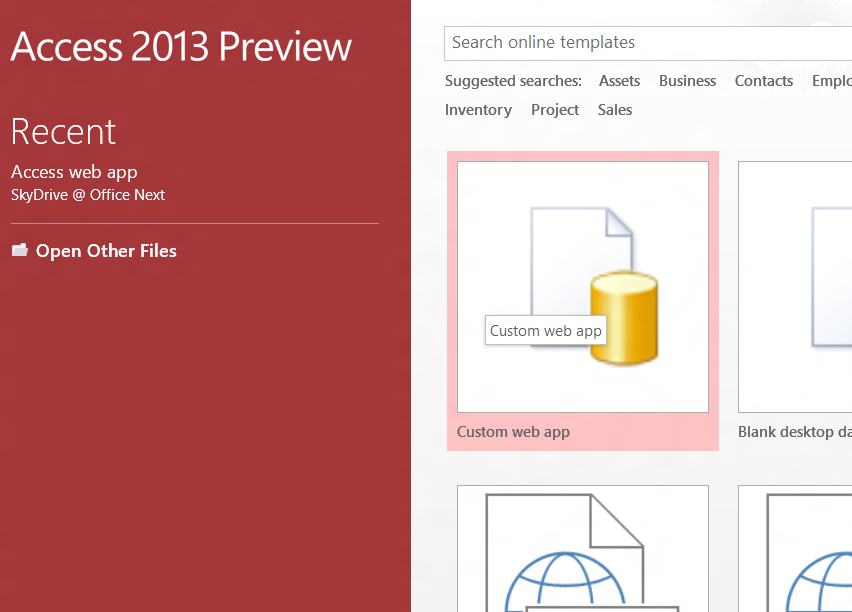
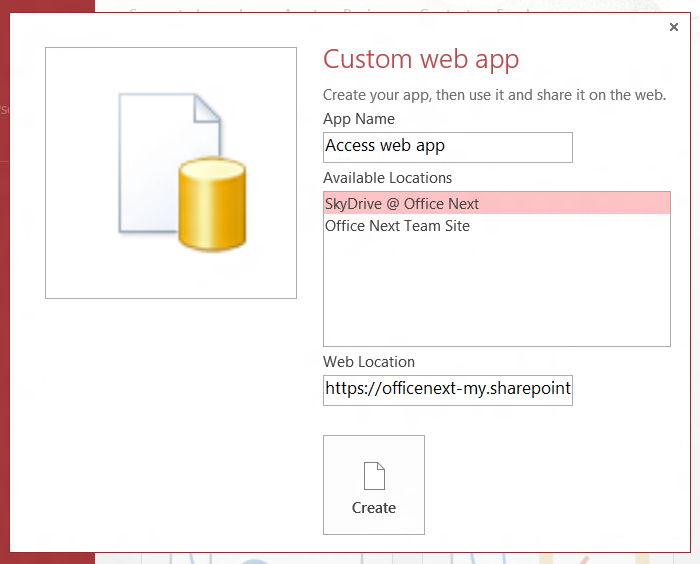
To make one of these, you click the big “Custom web app” button on the opening screen. The first thing you are asked is where to put it. It is looking for a SkyDrive or Office 365 team site – essentially, online SharePoint 2013 I imagine. If you are not signed in, this screen appears blank.

Advertisement

I selected SkyDrive at my Office 365 preview site.

image

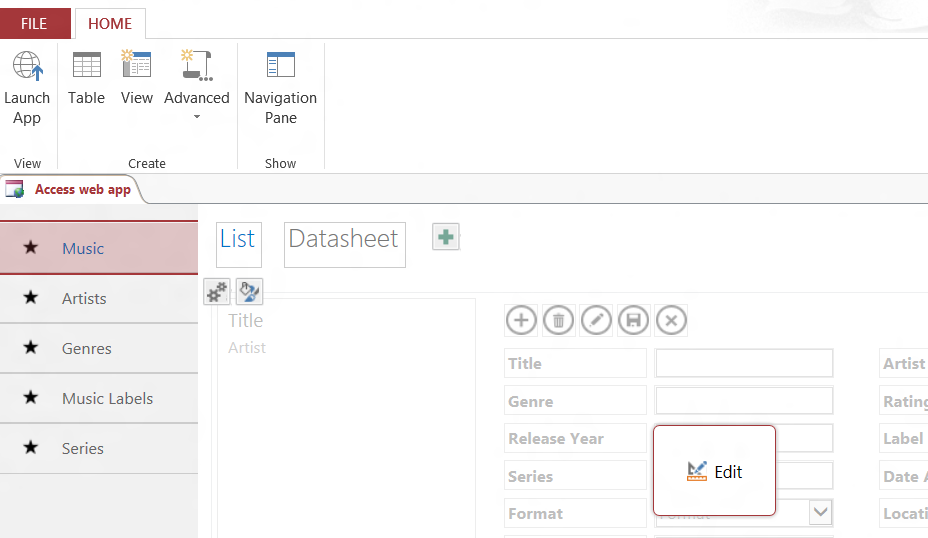
Hit Create and you can select an app from a template. I chose a Music Collection app. Access generated several tables and forms for me and opened the design environment.

image

The template app is a bit daft – Artists and Labels are based on a People template, so you get Labels with a Job Title field – but that does not bother me. What interests me is that Access generates a relational database that you can edit as you like. The template UI offers either a list/detail view called a List, or a Datasheet which shows rows in a grid format. There is also a Blank view which you can design from scratch.

I had a quick poke around. Access Web Apps do too good a job of hiding their innards for my taste, but what you get is a SharePoint app with data stored in SQL Server Azure. You can also use on-premise SharePoint and SQL Server 2012.

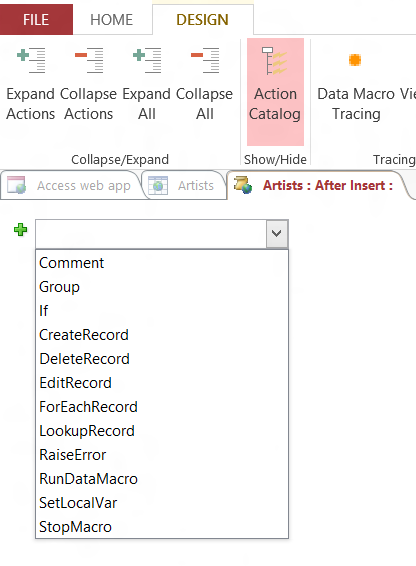
Programmability in Access Web Apps is limited, but you do get macros which let you combine multiple actions. There are two kinds of macros, UI macros and Data macros. UI macros support a range of actions including SetVariable, if and else statements. The only loop functions I can see are in Data macros, which include a ForEachRecord action. You can call Data macros from other macros and a Data macro includes a SetReturnVar statement, so I guess with a bit of ingenuity you can do many kinds of automated operations. Macros are described here.

image

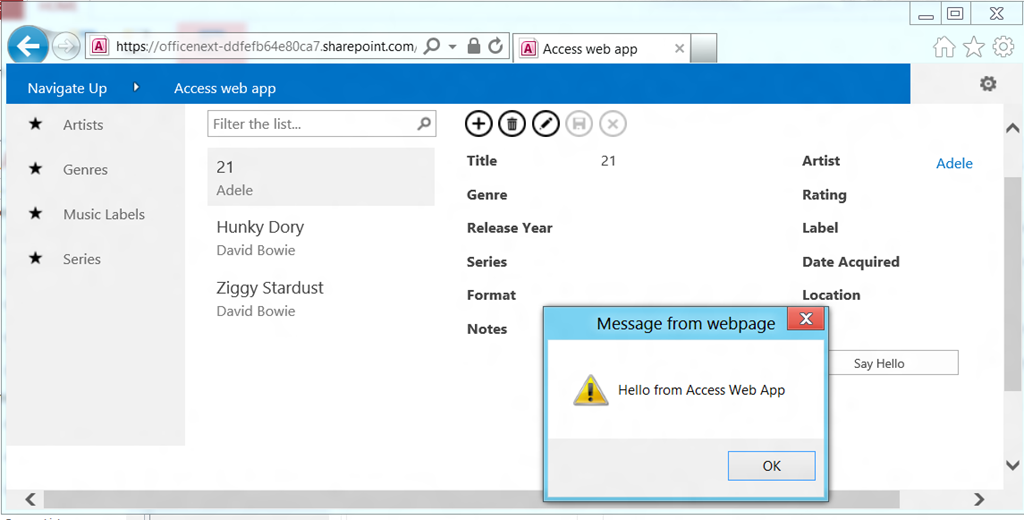
In my quick test, I put a button on a view and had it show a message. Apologies.

The application files are all stored on SharePoint, rather than locally, so I presume you could easily edit the app on any machine with Access 2013 installed.

Click Launch App and the web app opens in the browser. Everything worked, including my MessageBox.

image

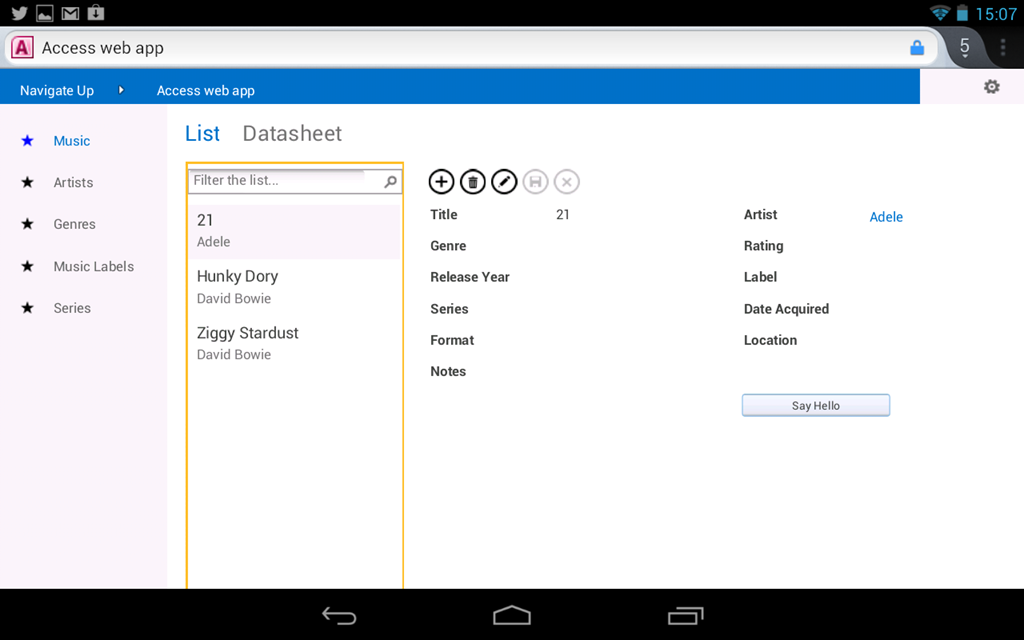
I also tried it on the Google Nexus 7 Android device. Again it seems to work fine, though I did get some odd behaviour returning to the app. There are possibly some authentication issues.

image

An Access Web App is just another SharePoint app, as explained here, so you can publish it to selected groups via the built-in store.

There is no way that I can see to craft your own SQL, which to me is a disadvantage, but maybe we will discover how to bypass the UI and open a database in SQL Management Studio, or access it programmatically from other environments.

It seems to me that what Microsoft is offering here is what it tried, but failed, to offer in Visual Studio LightSwitch: database programming for the non-specialist. Access has always done this, though unfortunately it is easy to make rather a mess if you do not know what you are doing. An Access Web App gives the developer/user fewer ways to go wrong, and builds cross-browser web apps. It is not yet possible to judge whether Microsoft has got the feature set right, but fundamentally this looks useful for simple custom business database applications of the kind that many small organisations and departments find they need. It is a big advance on MDB files stuck on a file share, fits with the BYOD (Bring Your Own Device) concept by working on iPads and the like, and makes it easy to get started and experiment. Good work.

Related posts:

  1. Very simple VB 2008 database app with databinding
  2. Sample code for a very very simple VB database application
  3. Microsoft Access needs a complete rethink – or retirement
  4. The end of Code Access Security in Microsoft .NET
  5. Remote access to files in Microsoft Small Business Server 2011

This might be Microsoft’s answer to FileMaker and QuickBase. I plan to try Tim’s approach and test it with my Nexus 7 tablet shortly. Stay tuned.