 My earlier Access Web Databases on AccessHosting.com: What is OData and Why Should I Care? post (updated 3/16/2011) described working with multi-tenant SharePoint 2010 Server instances provided by AccessHosters.com. Microsoft is about to release Office 365 as a commercial service (presently scheduled for 6/28/2011), so the details for using OData to manipulate SharePoint Online lists have become apropos.
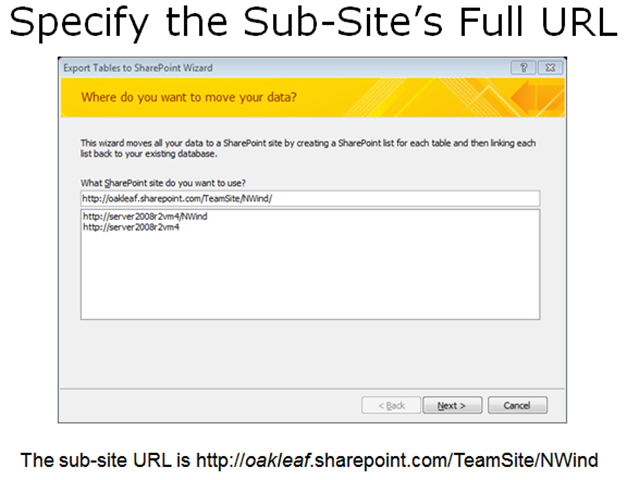
I delivered on 5/23/2011 a Moving Access Tables to SharePoint 2010 or SharePoint Online Lists Webcast for Que Publishing, which provides detailed instructions for creating Web databases by moving conventional Access *.accdb databases to SharePoint Online lists and, optionally, create Web pages that emulate Access forms and reports. Click here to open the Webcast’s slides, which begin by describing how to move Access tables to an onsite SharePoint 2010 server installation and how to overcome problems with relational features that SharePoint lists don’t support. Slides 30 through 34 describe how to move the tables from Northwind.mdb (the classic version) to a ServiceName.sharepoint.com/TeamSite/Nwind subsite, where ServiceName is the name you chose when you signed up for Office 365 (oakleaf for this example):
Opening an OData list of Collections
Log into your site’s default public web site at http://ServiceName.sharepoint.com/, click the Member Login navigation button, type your Microsoft Online username (UserName@ServiceName.onmicrosoft.com) and password if requested, and click OK to enter the default TeamSite in editing mode.
Click the SubsiteName, NWind for this example, and Lists links to display the lists’ names, descriptions, number of items and Last Modified date:

To display in OData a list of the SharePoint lists in a subsite, NWind for this example, type http://ServiceName.sharepoint.com/TeamSite/NWind/_vti_bin/listdata.svc in the address bar of IE9 or later:

Note: vti is an abbreviation for Vermeer Technologies, Inc., the creators of the FrontPage Web authoring application. Microsoft acquired Vermeer in January 1996 and incorporated FrontPage in the Microsoft Office suite from 1997 to 2003.
The EmployeesTitleOfCourtesy item is a lookup list with Dr., Miss, Mr., Mrs. and .Ms choices. The Attachment and two MasterPage… items are default lists found in all sites.
Display Items in a Collection
To display the list items in a collection, add /CollectionName/ (case-sensitive) to the URL for collections. If the resulting page in IE7+ appears similar to the following, you must turn off feed-reading view:

Turn Off Feed-Reading View, if Necessary
To turn off feed-reading view, open the Internet Options dialog, click the Content tab:
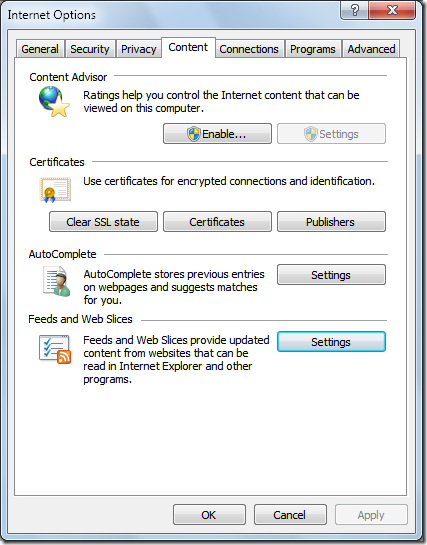
Click the Feeds and Web Slices section’s Settings button to open the Feed and Web Slice settings dialog and clear all check boxes:

Click OK three times to return to IE9+. Close and reopen IE to display the items in a formatted OData feed:

Verify Query Throttling
According to the All Site Content page, the OrderDetails table has 2,155 items. To determine if queries are throttled to return a maximum number of items, change the URL’s /CollectionName/ suffix from /EmployeesTitleOfCourtesy/ to /OrderDetails/. Press Ctrl+PgDn to navigate to the last item:

Office 365 beta throttles OData queries by delivering a maximum of 1,000 records per query, as indicated by the last item’s ID of 1000 and the <link rel="next" href="http://oakleaf.sharepoint.com/TeamSite/NWind/_vti_bin/listdata.svc/OrderDetails/?$skiptoken=1000" /> element immediately above the </feed> closing tag. Copy the URL with the skiptoken query option into the address bar to return the next 1,000 Order Details items, starting with ID 1001:

Paging to the end of the document confirms a $skiptoken=2000 value.
To return a single entry, append the Id value enclosed in parenthesis to the list name, as in http://oakleaf.sharepoint.com/TeamSite/NWind/_vti_bin/listdata.svc/OrderDetails(2001).
Note: SharePoint adds an autoincrementing Id primary key value to all lists generated from Access tables and saves the original primary key value in an __OldID column. This column is the source of the problem I reported in my SharePoint 2010 Lists’ OData Content Created by Access Services is Incompatible with ADO.NET Data Services post of 3/22/2011.
Remote Authentication in SharePoint Online Using Claims-Based Authentication
Third-party OData browsers, such as Fabrice Marguerie’s Sesame Data Browser, enable displaying, querying and, in some cases, updating content delivered by most OData providers. Sesame is a Sliverlight application, which runs from the desktop or in a browser. Sesame offers a built-in set of sample data sets and enables a variety of authentication methods, including Windows Azure, SQL Azure, Azure DataMarket and HTTP Basic.
Here’s a screen capture of browser-based Sesame with a connection specified to Fabrice’s Northwind sample database OData source:

Clicking OK displays members of the tables collection in the left-hand frame. Clicking an entry displays up to its first 15 elements. Hovering over a record selection arrow opens a button to display items in a related table by means of a lookup column, such as orders for AROUT in the following example:

Clicking the related table button opens the first 15 or fewer related entries in a linked query window:

The query string is Customers('AROUT')/Orders.
Problems Displaying SharePoint Online Lists in OData Format with the Sesame browser
Attempting to open the OData representation of a SharePoint Online list with Sesame’s Basic authentication (your Office 365 username and password), fails with a .NET Not Found exception. Here’s Fiddler 2.3.4.4 display of the raw HTTP request and response messages involved:

Following is a fiddler capture for a successful IE9 browser request for the OData representation of the SharePoint Online Products list:

Here’s Fiddler’s Headers view of the successful operation:

SharePoint Online doesn’t accept Basic authentication. Instead, it requires a pair of login cookies to enable remote claims-based authentication.
Robert Bogue’s Remote Authentication in SharePoint Online Using Claims-Based Authentication article for the MSDN Library’s “Claims and Security Articles for SharePoint 2011” topic explains how remote claims-based authentication works:
Introduction to Remote Authentication in SharePoint Online Using Claims-Based Authentication
The decision to rely on cloud-based services, such as Microsoft SharePoint Online, is not made lightly and is often hampered by the concern about access to the organization's data for internal needs. In this article, I will address this key concern by providing a framework and sample code for building client applications that can remotely authenticate users against SharePoint Online by using the SharePoint 2010 client-side object model.
Note: Although this article focuses on SharePoint Online, the techniques discussed can be applied to any environment where the remote SharePoint 2010 server uses claims-based authentication.
I will review the SharePoint 2010 authentication methods, provide details for some of the operation of SharePoint 2010 with claims-mode authentication, and describe an approach for developing a set of tools to enable remote authentication to the server for use with the client-side object model.
Brief Overview of SharePoint Authentication
In Office SharePoint Server 2007, there were two authentication types: Windows authentication, which relied upon authentication information being transmitted via HTTP headers, and forms-based authentication. Forms-based authentication used the Microsoft ASP.NET membership and roles engines for managing users and roles (or groups). This was a great improvement in authentication over the 2003 version of the SharePoint technologies, which relied exclusively on Windows authentication. However, it still made it difficult to accomplish many scenarios, such as federated sign-on and single sign-on.
To demonstrate the shortcomings of relying solely on Windows authentication, consider an environment that uses only Windows authentication. In this environment, users whose computers are not joined to the domain, or whose configurations are not set to automatically transmit credentials, are prompted for credentials for each web application they access, and in each program they access it from. So, for example, if there is a SharePoint-based intranet on intranet.contoso.com, and My Sites are located on my.contoso.com, users are prompted twice for credentials. If they open a Microsoft Word document from each site, they are prompted two more times, and two more times for Microsoft Excel. Obviously, this is not the best user experience.
However, if the same network uses forms-based authentication, after users log in to SharePoint, they are not prompted for authentication in other applications such as Word and Excel. But they are prompted for authentication on each of the two web applications.
Federated login systems, such as Windows Live ID, existed, but integrating them into Office SharePoint Server 2007 was difficult. Fundamentally, the forms-based mechanism was designed to authenticate against local users, that is, it was not designed to authenticate identity based on a federated system. SharePoint 2010 addressed this by adding direct support for claims-based authentication. This enables SharePoint 2010 to rely on a third party to authenticate the user, and to provide information about the roles that the user has. …
Robert continues with an “Evolution of Claims-Based Authentication” topic and …
SharePoint Claims Authentication Sequence
Now that you have learned about the advantages of claims-based authentication, we can examine what actually happens when you work with claims-based security in SharePoint. When using classic authentication, you expect that SharePoint will issue an HTTP status code of 401 at the client, indicating the types of HTTP authentication the server supports. However, in claims mode a more complex interaction occurs. The following is a detailed account of the sequence that SharePoint performs when it is configured for both Windows authentication and Windows Live ID through claims.
- The user selects a link on the secured site, and the client transmits the request.
- The server responds with an HTTP status code of 302, indicating a temporary redirect. The target page is
/_layouts/authenticate.aspx, with a query string parameter of Source that contains the server relative source URL that the user initially requested. - The client requests
/_layouts/authenticate.aspx. - The server responds with a 302 temporary redirect to
/_login/default.aspx with a query string parameter of ReturnUrl that includes the authentication page and its query string. - The client requests the
/_login/default.aspx page. - The server responds with a page that prompts the user to select the authentication method. This happens because the server is configured to accept claims from multiple security token services (STSs), including the built-in SharePoint STS and the Windows Live ID STS.
- The user selects the appropriate login provider from the drop-down list, and the client posts the response on
/_login/default.aspx. - The server responds with a 302 temporary redirect to
/_trust/default.aspx with a query string parameter of trust with the trust provider that the user selected, a ReturnUrl parameter that includes the authenticate.aspx page, and an additional query string parameter with the source again. Source is still a part of the ReturnUrl parameter. - The client follows the redirect and gets
/_trust/default.aspx. - The server responds with a 302 temporary redirect to the URL of the identity provider. In the case of Windows Live ID, the URL is https://login.live.com/login.srf with a series of parameters that identify the site to Windows Live ID and a wctx parameter that matches the ReturnUrl query string provided previously.
- The client and server iterate an exchange of information, based on the operation of Windows Live ID and then the user, eventually ending in a post to
/_trust/default.aspx, which was configured in Windows Live ID. This post includes a Security Assertion Markup Language (SAML) token that includes the user's identity and Windows Live ID signature that specifies that the ID is correct. - The server responds with a redirect to
/_layouts/authenticate.aspx, as was provided initially as the redirect URL in the ReturnUrl query string parameter. This value comes back from the claims provider as wctx in the form of a form post variable. During the redirect, the /_trust/default.aspx page writes two or more encrypted and encoded authentication cookies that are retransmitted on every request to the website. These cookies consist of one or more FedAuth cookies, and an rtFA cookie. The FedAuth cookies enable federated authorization, and the rtFA cookie enables signing out the user from all SharePoint sites, even if the sign-out process starts from a non-SharePoint site. - The client requests
/_layouts/authenticate.aspx with a query string parameter of the source URL. - The server responds with a 302 temporary redirect to the source URL.
Note: If there is only one authentication mechanism for the zone on which the user is accessing the web application, the user is not prompted for which authentication to use (see step 6). Instead, /_login/default.aspx immediately redirects the user to the appropriate authentication provider—in this case, Windows Live ID.
SharePoint Online Authentication Cookies
An important aspect of this process, and the one that makes it difficult but not impossible to use remote authentication for SharePoint Online in client-side applications, is that the FedAuth cookies are written with an HTTPOnly flag. This flag is designed to prevent cross-site scripting (XSS) attacks. In a cross-site scripting attack, a malicious user injects script onto a page that transmits or uses cookies that are available on the current page for some nefarious purpose. The HTTPOnly flag on the cookie prevents Internet Explorer from allowing access to the cookie from client-side script. The Microsoft .NET Framework observes the HTTPOnly flag also, making it impossible to directly retrieve the cookie from the .NET Framework object model.
Note: For SharePoint Online, the FedAuth cookies are written with an HTTPOnly flag. However, for on-premises SharePoint 2010 installations, an administrator could modify the web.config file to render normal cookies without this flag. …
Robert concludes the article with “Using the Client Object Models for Remote Authentication in SharePoint Online” and “Reviewing the SharePoint Online Remote Authentication Sample Code Project.”
Fabrice will need to add a SharePoint authentication option with code similar to that described in the article to enable interacting with OData content from SharePoint Online.
OData References
Following is a table of useful references that provide the details of OData query and data update syntax:
Technorati Tags:
Open Data Protocol,
OData,
SharePoint 2010,
SharePoint Online,
SharePoint,
Access Services,
Microsoft Access,
Access 2010,
Access Web Databases,
Remote Authentication,
Claims-Based Authentication,
Federated Authentication,
Sesame Data Browser


SharePoint Conference 2011 is your only opportunity this year to see over 200 sessions focused on SharePoint 2010 and related technologies both in the cloud and on-premises. All current session content including abstracts and speakers have been posted to www.mssharepointconference.com!
This year’s conference will have a breadth of both technical and non-technical sessions and will have suitable topics for everyone regardless if you are new to SharePoint 2010 or working on continuing your SharePoint education.
Don’t miss your chance to attend and learn from these sessions by registering now! Conference registration is only $1,199 and seats are selling fast with only 2.5 months until the event!


![image_thumb[2]](https://blogger.googleusercontent.com/img/b/R29vZ2xl/AVvXsEiwctbxeeW048HEuDsnlFlIyLP6cwS33TGCxbluty2bdT7I6-aRiJSQ0bVoLQ2hxNf9YKbY_C3QJ08VE911V-PnfblTc2dPpHjmEeVBOPb59-PAMd8P7Fgyb17xyilNYF-32LaGajkmyVwc5Oo/s1600-h/image_thumb%25255B2%25255D%25255B2%25255D.png "image_thumb[2]")


