Showing posts with label Access 2010 SP1. Show all posts

Sunday, March 17, 2013

Creating a Working DSNless ODBC Connection String with SQL Server Native Client v11.0 for SQL Server 2012

OakLeafLogoMVP100pxWhen completing a Microsoft Access 2010 Resident Information Management System (RIMS) project for the Home Owners Association of an East Bay high-rise condominium, the last step in preparing the runtime installation package was generating a DSNLess connection to SQL Server 2012 Express running under SQL Server 2012 Standard Edition. I used a System DSN with the SQL Native Client v11 driver during testing on my client’s new Active Directory network.

imageThe SQL Server chapters of my Special Edition Using Microsoft Access (since the Access 2005 edition) and Microsoft Access In Depth books for QUE Publishing have included VBA source code for a ChangeServer class module, which generates DSNLess connection strings from System Data Source Names (DSNs) for the classic SQL Server Driver (SQLSVR32.dll, v6.01.7601.17154 for SQL Server 2012). SQL Server Native Client (SQLNCLI11.dll, v2011.110.3000.0 for SQL Server 2012) is now the preferred ODBC driver for all client applications, including Microsoft Access.

imageI had customized the ChangeServer module for the SQL Native Client (SQLNCli) for applications using Access 2007 and 2010 front ends with SQL Server 2005, 2008 and 2008 R2. When I wrote code to change the SERVER clause of the connection string to DRIVER={SQL Native Client 11.0};, and ran the Client.accdr file with the new ODBC;DRIVER={SQL Native Client 11.0};SERVER=OL-WIN7PRO23\SQLEXPRESS;DATABASE=RIMS;TABLE=dbo.Owners; Trusted_Connection=YES connection string, I received the following malformed error message:

image

Previous SQL Server versions hadn’t objected to similar connection strings, so after unsuccessfully searching for the issue with Bing and Google, I started a How to Create a Working DSNless SQL Server 2012 Connection String? thread in the SQL Server Data Access forum.

Dan Guzman, SQL Server MVP, http://www.dbdelta.com offered the following suggestion:

image

Dan was right, but changing the the connection string to ODBC;DRIVER={SQL Native Client 11.0};SERVER=OL-WIN7PRO23\SQLEXPRESS;DATABASE=RIMS; TABLE=dbo.Owners;Trusted_Connection=YES threw a “missing field” error, which indicated the table was missing a primary key field. (It wasn’t.)

It turns out that specifying the table name with a TABLE= clause no longer works. You must execute a tdfToAppend.SourceTableName = "dbo.TableName" instruction.

imageYou can download the updated ChangeServer class module from my SkyDrive account by clicking here.

Wednesday, February 8, 2012

Securing MS Linked Tables Connection Strings During Migration

Han posted Securing MS Linked Tables Connection Strings During Migration to the SQL Server Migration Assistant Team Blog on 2/8/2012:

Microsoft Access stores all the connection strings for the respective linked tables in a system table called MSysObjects. As seen below, the connection strings contain clear-text used id and password. With the release for SSMA for Access 5.2, when creating link tables during migration, users will now have the option to not store the user id and password for the linked tables.

A new setting for linked tables can be found under the Project Settings menu. By default, the Store user credentials setting is set to false, thus user id and password will not be persisted in the connection string of a linked table. Switching the setting to true would provide the option to store the user id and password in the connection strings during the creation of linked tables.

It is important to note that after securing the connection string, MS Access users will have to enter the required user id and password whenever the linked tables are referenced in the MS Access Database application. Below shows the prompt presented by MS Access.

Saturday, July 9, 2011

Problem Reported with Access Wizards and 64-bit Access 2010 SP1

Stephen Thomas suggested Using 64-bit Access 2010? You may want to wait on [Installing] SP1 in a 7/8/2010 post to the Access blog:

A customer's post on TechNet brought one of my colleague's attention to an error folks are seeing after applying SP1 to 64-bit Access installations and then trying to use a wizard:

The database cannot be opened because the VBA project contained in it cannot be read. ... To open the database and delete the VBA project without creating a backup copy, click OK.

On clicking OK, Access doesn't open the database, offering this error message:

The code contains a syntax error, or a <DB_NAME> function you need is not available. If the syntax is correct, check the Control Wizards subkey or the Libraries key in the <DB_NAME> section of the windows registry to verify that the entries you need are listed and available.

Apparently, the VBE7.DLL file update included in the service pack prevents the opening of .ACCDE files compiled using RTM 64-bit Access. Because wizards are .ACCDE files, they could trigger the error depending on when they were compiled.

The customer who posted reports that uninstalling the service pack restores the functionality, and advises that people with 64-bit Access wait until a solution is provided before applying SP1. TechNet agrees (the mod marked it as an Answer), and so do I.

Stay tuned for that solution…

Forewarned is forearmed.


Monday, June 13, 2011

Tim Anderson on iPad and iPhone with FileMaker Pro and Go

Tim Anderson (@timanderson) described Easy database apps for iPad and iPhone with FileMaker Pro and Go in a 6/13/2011 post:

image FileMaker Pro is a database manager from FileMaker Inc, a wholly owned subsidiary of Apple. It is a capable produce that has been around for over 20 years and is the dominant Mac-based database manager, though there is also a Windows version. FileMaker has evolved relatively slowly, with more focus on usability than on features. In comparison to Microsoft Access, FileMaker wins on usability and scalability, but Access has a more traditional approach based on SQL and programming with Visual Basic for Applications. FileMaker has a drag-and-drop script editor and support for AppleScript on the Mac.

Although the script editor is frustrating for someone used to writing code, it does work. As well as manipulating the data, you can set and retrieve local and global variables, perform loops and display custom dialogs; it is not as limited as it may seem at first.

A FileMaker database can be huge, with 8 terabytes specified as the theoretical limit. External databases are accessible through ODBC on both Windows and Mac.

The number of users supported by FileMaker is limited. The desktop product supports up to 5 concurrent users, and FileMaker Server up to 250 users. FileMaker has its own built-in security system, though FileMaker server can also authenticate against an external directory. Security is fine-grained, and you can even specify permissions for an individual record.

I have not looked at FileMaker for a few years, but renewed my interest when the company came out with FileMaker Go, a runtime client for Apple iOS. Given that FileMaker runs scripts you might have thought this would be restricted, bearing in mind this provision in the App Store guidelines:

2.7 Apps that download code in any way or form will be rejected

This is normally taken to prohibit runtimes like Java or Adobe Flash/AIR. Well, either someone decided that FileMaker scripts are not code; or there are special rules for an Apple subsidiary, which is reasonable enough. Anyway, FileMaker Go is in the App Store and does run scripts.

What this means is that you can create apps in FileMaker Pro and deploy them to iOS without going via the App Store. There are two models. FileMaker Go can open a file hosted by FileMaker desktop or server, in which case it behaves like a Mac or Windows client, or alternatively you can transfer a file to FileMaker Go to run locally. Transferring a file is easy using iOS launch service; essentially, if you can access the file via the internet or an email attachment, you can just tap it on the device and it will open in FileMaker Go. The advantage of running locally is offline use, whereas the advantage of the client-server model is that all users have the most up-to-date version of the data, and the database can be much larger. FileMaker is a real server application; this is not just file sharing. This also means that FileMaker must be running with the database open if you want to to use the client-server approach.

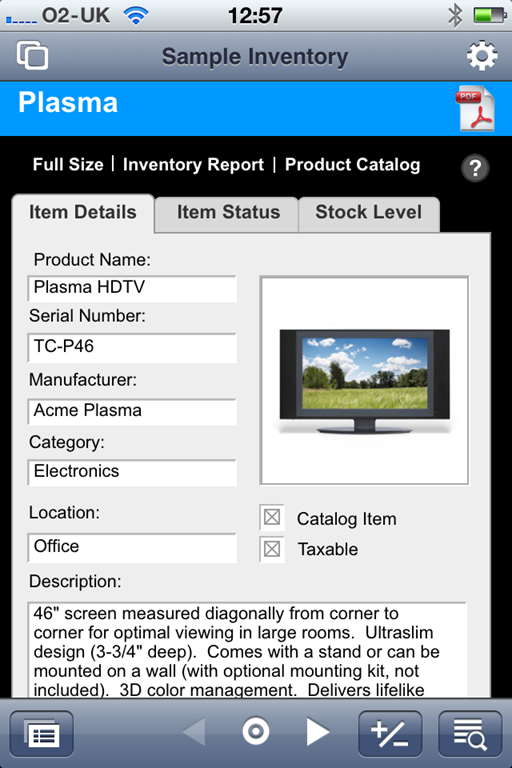
I tried FileMaker Go with a simple example and it works well. In essence it is delightful; you just open your database either locally or over the network, and it works. Here is a sample app on the iPhone 4:
image

That said, there are things that do not work, spell checking for example. It is also stripped of anything other than client features, so you cannot modify database structure, create new databases, or publish from the device to other clients. You also have to be careful with layout size. Most layouts designed for the desktop will need modification to work well.

There are a couple of issues. One is performance. It is just about bearable, but has that lethargic feel that you get with interpreted code on a relatively slow processor.

Another issue is synchronisation. If you want to work offline, how do you update your main database with any changes? The issue is little different with FileMaker Go than it is with a laptop, and it is discussed here. You have several choices:

1. Don’t synchronize, use client-server.

2. Treat your local database as read-only.

3. Use import and export. Existing records will simply be overwritten by imported ones.

4. Use a third-party tool. However the tool mentioned here, SyncDek, probably does not work with FileMaker Go since it needs to run a Java process on the client.

5. Roll your own. “FileMaker Pro has all the tools needed to create a robust synchronization system” says the guide; but it is non-trivial to implement this.

It is worth mentioning that FileMaker Pro also has an Instant Web Publishing feature that gives another route to mobile access and may perform better. There are pros and cons. The big one is offline, only available with FileMaker Go. Another is scripts. Some scripts work in Instant Web Publishing, but FileMaker Go is more compatible in this area.

I think this is significant for businesses where iOS devices are turning up. Many business apps do resolve down to forms over data, and this is is an easy way to deliver this kind of application to iOS users.

How is FileMaker pro as a programming tool? Just for fun, and because I have done it for other mobile development tools, I built a calculator in FileMaker. I do not recommend FileMaker for general-purpose programming; but it has the essentials, a form designer and scripting. Here is the result on an iPhone 4:

image

Oddly the biggest struggle I had was finding an easy way to display the input and result. In the end I added a field to the database just for this purpose. If a FileMaker expert could let me know a better way to update a text label on a layout via script, I would be interested to know.

The calculator is slow too, not for the calculation of course, but the operation of the user interface. Still, it does demonstrate that FileMaker Go is indeed able to download code and run it.

Related posts:

  1. Adobe targets Apple iPhone and iPad browsers with tool to convert Flash projects
  2. Trying out MonoTouch – C# for Apple’s iPhone and iPad
  3. Enterprise app development on Apple iPhone and iPad

There are some interesting parallels between FileMaker Go and Azure Web Databases, such as Web Databases support for macro programming only. It will be interesting to see what the next version of SharePoint’s Access Services will bring to Windows Phone 7 clients.

Thursday, May 19, 2011

Office 2010 SP1 on track for late June

Ryan McMinn posted Office 2010 SP1 on track for late June to the Microsoft Access blog on 5/17/2011:

image We're on track to deliver Office 2010 SP1 in late June 2011 (here's yesterday's official announcement). We definitely recommend this update for all Office 2010 users. There has been great work put into this service pack that further enhances the performance and security of Access. Here are a couple of highlights:

  • Fixed issue in export to Excel to make sure it always export the data based on the current view.
  • Improved the performance of publishing client forms from Access with embedded images.

Additionally, if you're one of the few 64-bit Access users working with compiled Access databases (ACCDE, MDE, and ADE files), be sure to check out this KB article that details an update process you'll need to go through to have your files work properly with SP1.

Let us know what you think!

-- Ryan McMinn, Senior Program Manager Lead

Friday, April 15, 2011

Upsize Microsoft Access Databases to SQL Azure with SSMA 4.2

Bill Ramos explained Migrating Access Jet Databases to SQL Azure in a 4/14/2011 post:

image In this blog, I’ll describe how to use SSMA for Access to convert your Jet database for your Microsoft Access solution to SQL Azure. This blog builds on Access to SQL Server Migration: How to Use SSMA using the Access Northwind 2007 template. The blog also assumes that you have a SQL Azure account setup and that you have configured firewall access for your system as described in the blog post Migrating from MySQL to SQL Azure Using SSMA.

Creating a Schema on SQL Azure

imageIf you are using a trial version of SQL Azure, you’ll want to get the most out of your free 1 GB Web Edition database. By using a SQL Server schema, you can accommodate multiple Jet database or MySQL migrations into a single database and limit access to users for each schema via the SQL Server permissions hierarchy.

SSMA for Microsoft Access version 4.2 doesn’t support the creation of a database schema within the tool, so you will need to create the schema using the Windows Azure Portal. Launch the Windows Azure Portal with your Live ID and follow the steps as shown below.

01 Windows Azure Portal

  1. Click on the Database node in the left hand navigation pane.
  2. Expand out the subscription name for your Azure account until you see your databases
  3. Select the target database that you created when you first connected to the Azure portal – see Migrating from MySQL to SQL Azure Using SSMA for how the SSMADB was created for this blog.
  4. Click on the Manage command to launch the Database Manager. You will log in into SQL Azure database as shown below.
    02 Login to DB Manager

Once in the Database Manager, you will need to press the New Query command as shown below so that you can create the target schema for the Northwind2007 database.

03 Create new query in DB Manager

Now that you have the new query window, you can do the following steps as illustrated below.

04 issue create schema command

  1. Type in the Transact-SQL command to create your target schema: create schema Northwind2007
  2. Press the Execute command in the toolbar to run the statement.
  3. Click on the Message window command to show that the command was completed successfully.

You are now ready to use SSMA for Access to migrate your database to SQL Azure into the Northwind2007 schema.

Creating a Migration Project with SQL Azure as the Destination

Start SSMA for Access as usual, but close the Migration Wizard that starts by default. The Migration Wizard will end up creating the tables in the dbo schema instead of the Northwind2007 schema that you created. Follow the steps shown below to create your manual migration project.

10 Create new project

  1. Click on the New Project command.
  2. Enter in the name of your project.
  3. Select SQL Azure for the Migration To option and click OK. If you forget to select SQL Azure, you’ll need to create a new project again because you can’t change the option once you have competed the dialog.

The next step is to add the Northwind2007 database file to the project and connect to your SQL Azure database as shown below.

11 Add databases and connect to SQL Azure

  1. Click on the Add Databases command and select the Northwind2007 database.
  2. Expand the Access-metadata node in the Access Metadata Explorer to show the Queries and Tables nodes and select the Tables checkbox.
  3. Click on the Connect to SQL Azure command
  4. Complete the connection dialog to your SQL Azure database
Choosing the Target Schema

To change the target schema, you need to Modify the default value from master.dbo to database name and schema that you created for your SQL Azure database – in this example – SSMADB.Northwind2007 following the steps below.

12 Cloosing the schema

  1. Click on the Modify button in the Schema tab.
  2. Click on the […] brose button in the Choose Target Schema dialog.
  3. Choose the target schema – Northwind2007 - and then click the Select and the OK button.
Migrate the Tables and Data with the Convert, Load, and Migrate Command

At this point, you are ready to proceed with the standard migration steps for SSMA which includes (ignoring errors):

  1. Click on the Tables folder for the Northwind2007 database in the Access Metadata Explorer to enable the migration toolbar commands.
  2. Click on the Convert, Load, and Migrate command to do all the steps to compete the migration with the one command.
  3. Click OK for the Synchronize with the Database dialog as shown below to create the tables in the Northwind2007 schema within the SSMADB database.
    13 Sync tables to target
  4. Dismiss the Convert, Load, and Migrate dialog assuming everything worked.
Using SSMA to Verify the Migration Result

To verify the results, you can use the Access and SQL Azure Metadata Explorers to compare data after the transfer as follows.

14 Verify the results

  1. Click on the source table Employees in the Access Metadata Explorer
  2. Select the Data tab in the Access workspace to see the data
  3. Click on the target table Employees in the SQL Azure Metadata Explorer
  4. Select the Table tab in the SQL Azure workspace to see the schema or the Data tab to view the data.

You can also use the SQL Azure Database Manager to view the table schema and data as described at the end of the blog post Migrating from MySQL to SQL Azure Using SSMA.

Creating Linked Tables to SQL Azure for your Access Solution

To make your Access solution use the SQL Azure tables, you need to create Linked tables to the SQL Azure database. To create the Linked tables, you need to select the Tables folder in the Access Metadata Explorer as shown below.

15 Link Tables

Right click on the Tables folder and select the Linked Tables command. SSMA will create a backup of the tables in your Access solution file and then create the Linked Table that connects to the table in SQL Azure.

Summary

As you can see, migrating your Access solution that uses Jet tables as easy as:

  1. Creating a target schema in your target SQL Azure database.
  2. Creating a project with the Migrate To option set to SQL Azure.
  3. Following the normal steps for migrating schema and data within SSMA.
  4. Verifying the reports within SSMA or through the SQL Azure Database Manager.
  5. Creating Linked Tables to the SQL Azure database within your Access solution using SSMA.

Additional SQL Azure Resources

To learn more about SQL Azure, see the following resources.

Wednesday, October 27, 2010

Service Pack 1 coming for Office 2010 and SharePoint 2010

The Microsoft Office Customer Programs Team sent messages to Office and SharePoint 2010 technical beta testers  on 10/26 requesting applications to participate in a forthcoming (calendar year 2010) Beta program for Service Pack 1:

Hello Valued Microsoft Customer,

We are contacting you about an opportunity to participate in an upcoming Beta testing program. You may be a previous tester of Microsoft products, or someone who has been nominated. Beta programs are unique ways to experience product updates and provide feedback to the development teams. Later this calendar year we will begin an invitation-only beta testing of the Service Pack 1 for Office 2010 and SharePoint 2010. Service Packs contain product updates since the product released. We would like to invite you to participate in the private testing of that service pack.

Call to action

If you are interested in participating in this Beta, and if you are already using Office 2010 or SharePoint 2010, please complete the application survey by following the link below. Upon completing the survey, your participation status will be set to ‘pending’, while we review your submission. If you are selected to participate, you will receive a formal invitation to join the program. Due to the limited number of seats in this private Beta, we may not be able to accommodate all interested testers.

If you are already registered on Microsoft Connect, make sure to sign in with your existing registered Windows Live ID account to submit this survey. If you are not registered yet, you will be prompted to do so.

Hopefully, Service Pack 1 will enable Access 2010’s Macro-to-VBA Converter to work with embedded macros. This feature suffered from a regression bug that wasn’t fixed in the RTM version.